Deckset Basics
Everything you need to know to start making presentations
1
Built on Markdown
Deckset uses standard Markdown syntax to transform your thoughts into a beautiful presentation.
This slide is one of the simplest types of slides you can create, it contains two paragraphs of text and a header.
2
Creating slides
A new slide is defined by three dashes ‘---’ typed on a single line, with an empty line above and below.
Like

---

So3
Paragraphs
Creating paragraphs is simple, just type — no special syntax needed.
You can include a paragraph break by leaving an empty line between the paragraphs.Otherwise lines will follow on directly like this.
4
Headers
Headers are created by including a # before the text:
# This is a header.
Deckset has four different heading sizes. You can change size by simply adding #, ##, ### or #### before your heading.
5
Lists
6
Emphasis
Use strong, emphasis or a combination of both to make your point stand out.
strong text by wrapping words in double asterisks or underlines ‘**like this**’ or ‘__this__’. Emphasis is added by wrapping words in single asterisks or underlines ‘*like this*’ or ‘_this_’. Combine a single with a double for both effects at the same time.
7
Links
Create links to any external resource—like a website—by wrapping link text in square brackets, followed immediately by a set of regular parentheses containing the URL where you want the link to point:
‘[a website](http://www.deckset.com)’
Your links will be clickable in exported PDFs as well!
8
Code samples
Wrap your code with three backticks and specify the language for automatic syntax highlighting.
UIView *someView = [[UIView alloc] init];
NSString *string = @"some string that is fairly long, with many words";
We scale the text dynamically so it always looks great. You can also use a single indent to switch to a monospace font.
9
Images
The simplest way to get images into your presentation is to drop a local or web image onto the Deckset window — the markdown is automatically created and copied to your clipboard.
You can also add images with the following syntax:
‘’
10

11

If you use text and images together, the image is filtered so the text is always readable.
12

Take a look at the ‘Working with images’ example presentation for a complete overview of what you can do with images in Deckset.
13

Videos can be included too, either as local files or YouTube links.
14
Quotes
All slides containing a single quote have special formatting for extra impact.
Add ‘>’ in front of every quote lineAnd add ‘--’ for the quote author reference
15
The best way to predict the future is to invent it— Alan Kay
16
Footers and Slide Numbers
Include persistent custom footers and/or running slide numbers by using directives:
footer: © Unsigned Integer UG, 2017
slidenumbers: true
Make sure the two directives start on the first line of your markdown file, and ensure there are no empty lines between the two.
17
Speaker notes
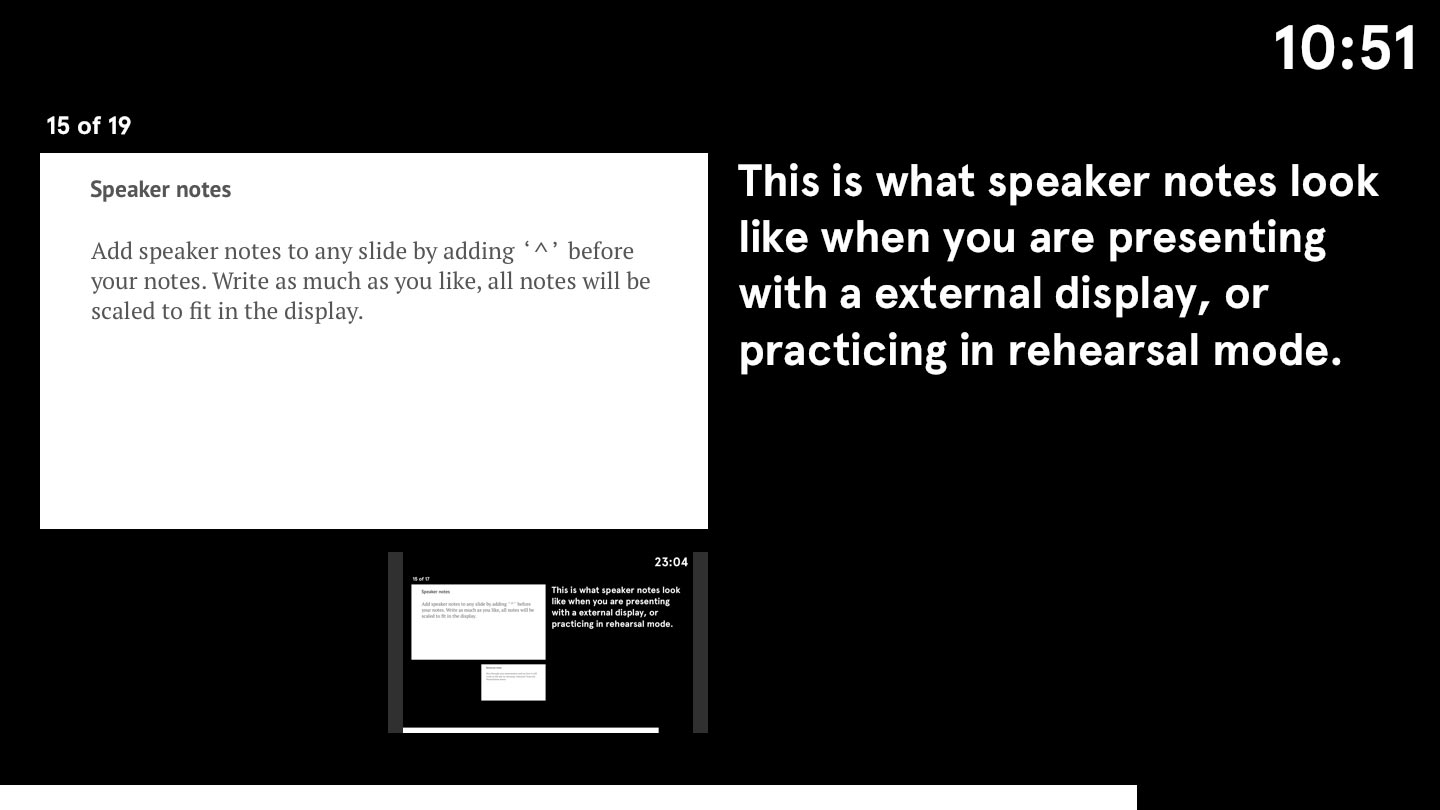
Add speaker notes to any slide by adding ‘^’ before your notes. Write as much as you like, all notes will be scaled to fit in the display.
18
19
Rehearsal mode
Choose Rehearsal Slideshow from the View menu to run through your presentation and see how it will work on the day.
20
Aspect Ratios
Easily swap between 16:9 and 4:3 in the Presentation menu to suit whichever projector or screen you are using.
21
More control with a little HTML
If you really must tweak line breaks, you can use the <br/> tag to split any line of text.
22