Guide
Deckset for Educators
Run engaging lessons, async updates, and flipped classrooms straight from your notes.
Foundations
Deckset turns simple Markdown files into polished lecture slides. You focus on the text, Deckset takes care of layouts, themes, and presenting.
From plain text to polished slides
Write your lecture in any text editor using Markdown. Deckset turns headings into slides, paragraphs into slide content, and optional speaker notes into a private presenter view. You can separate slides with three dashes (—) or enable the option to treat headers as slide dividers when that better matches how you write. Here’s how your Markdown is translated into slides:
- Top-level headings introduce new sections and, with the treat-headers-as-slide-dividers option enabled, can act as slide boundaries.
- Slide separators (— on a single line with blank lines around it) always start a new slide.
- Subheadings help structure content within or across related slides.
- Paragraphs and lists become the main body content of each slide by default.
- Presenter notes keep extra text private in presenter view. You can also enable an option to treat all paragraphs as presenter notes when you want your Markdown to be a private script by default.
- Aspect ratio can be adjusted to suit different screens and projectors (e.g., 16:9 or 4:3).
Drop in your existing notes
Already writing your lectures in Markdown? Drag the file into Deckset, enable the option to treat headers as slide dividers, and your section titles instantly become slides. If you toggle the treat-paragraphs-as-presenter-notes option, each paragraph underneath a heading becomes private speaker notes instead of slide content. In minutes you get a deck with clean titles, on-slide essentials, and presenter notes that are ready to export for students.
Or start with an educator template
Deckset ships with example slide decks, including one tailored to educators. Open it from the welcome window or the Help menu to see real Markdown samples for footers, slide numbers, nested lists, footnotes, MathJax, captioned media, and a few quick-hit feature highlights—then swap in your own content.
Text emphasis & inline code
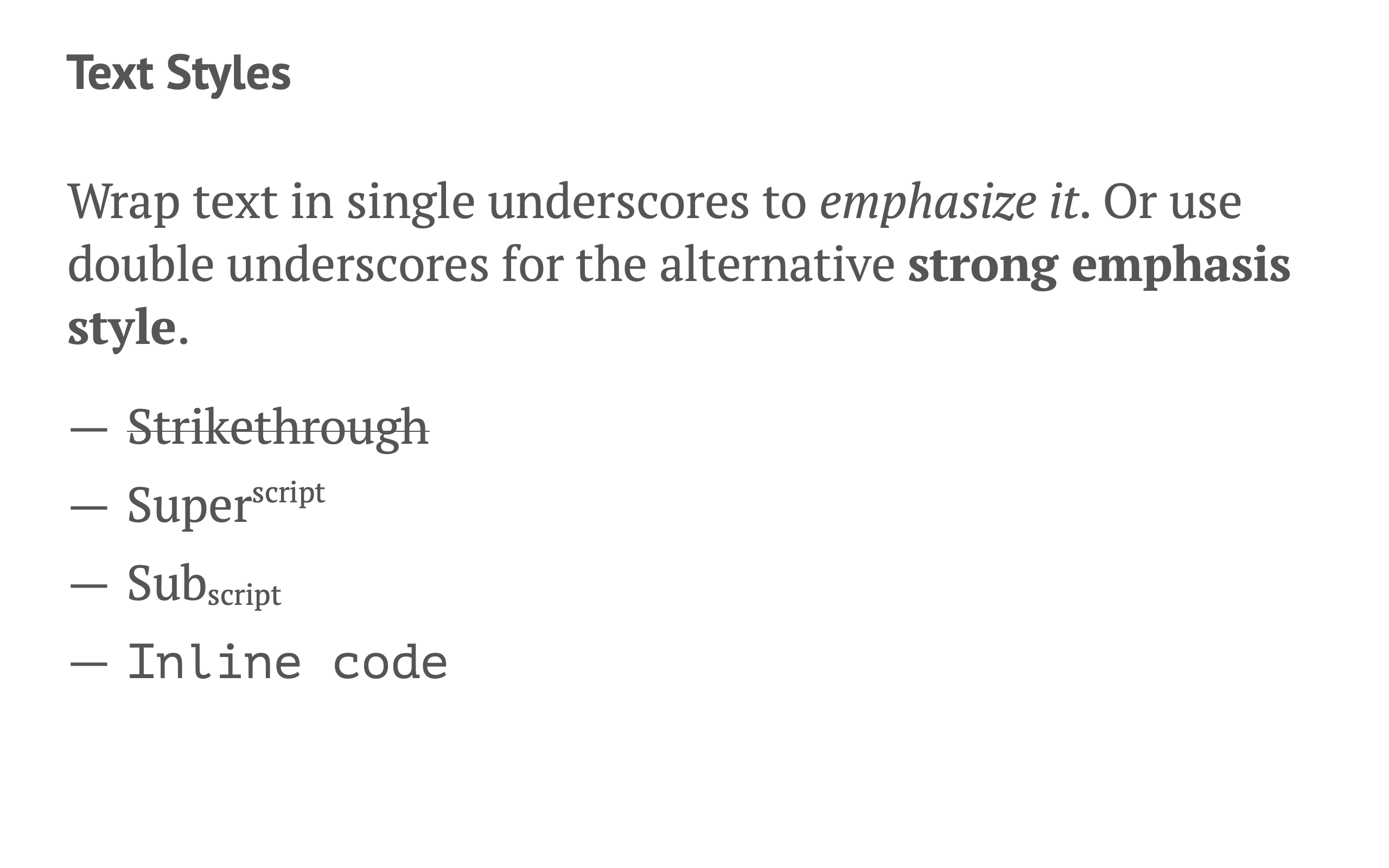
Keep everything in Markdown but still highlight terminology, show code inline, strike out revisions, or add superscripts/subscripts for equations and citations.
Keeping your workflow simple
Because everything stays in plain text, you don’t have to learn a complex slide editor. Version control, collaboration, and long-term maintenance of your course materials become much easier.
Educational pricing
Deckset offers educators 50% off. Fill out the form on our education page to receive the discount for your own license, and email support@deckset.com if you need multiple seats.
Content Types
Combine structure, code, media, and diagrams to build engaging lessons. Deckset supports a wide range of content types directly from Markdown.
Structuring concepts with lists
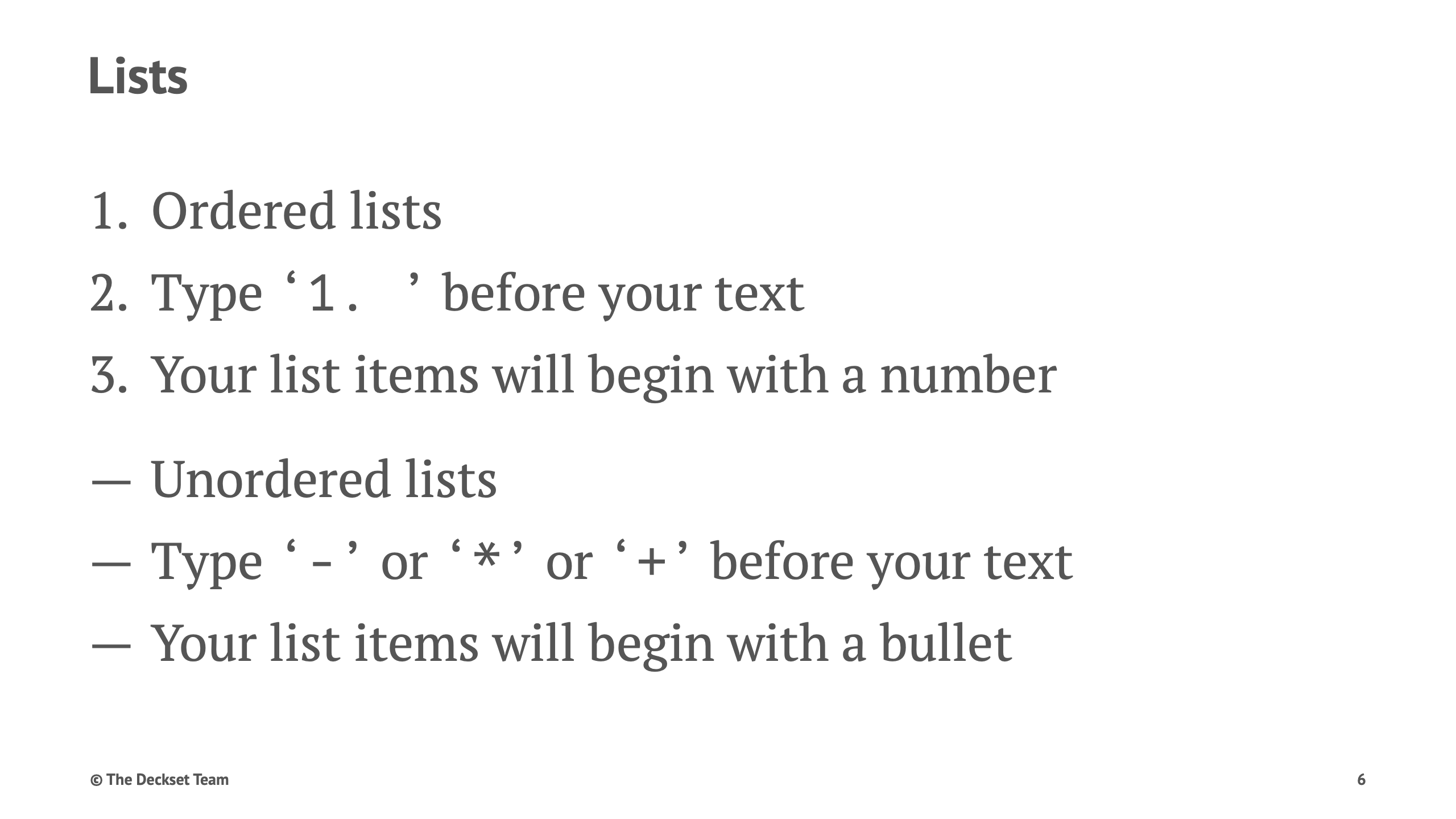
Use bullet points and nested lists to present complex topics step by step so students can follow your reasoning. Deckset supports a few simple patterns that make structuring information easy:
- Bullet lists are ideal for key ideas and takeaways.
- Numbered lists work well for procedures, algorithms, and proofs.
- Nested lists help you show main ideas with supporting details.
Tables
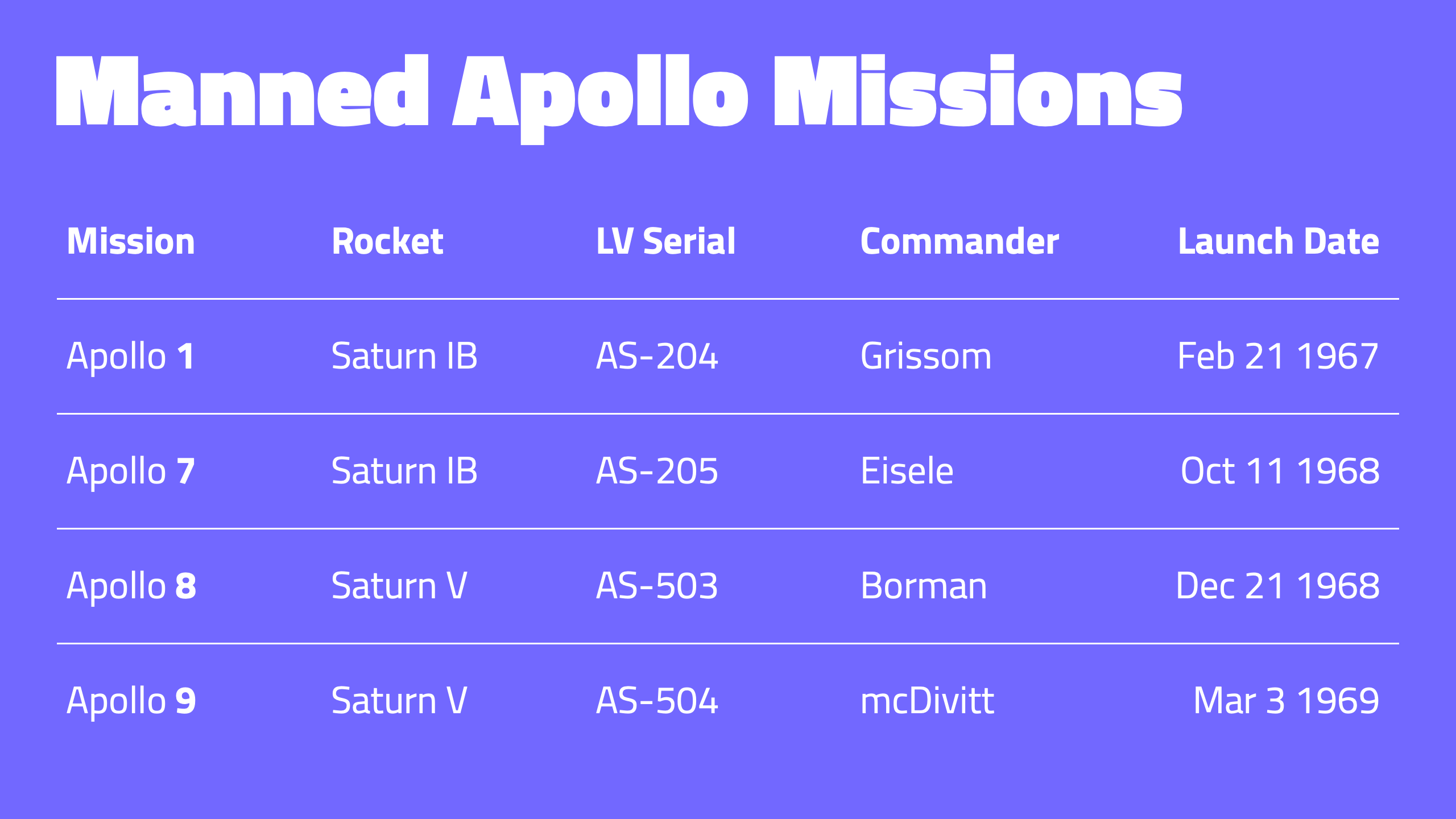
Deckset supports Markdown table syntax (as defined in GitHub Flavored Markdown), making it easy to compare concepts, present data, or display structured information clearly. Tables stay readable even when projected or printed.
Columns
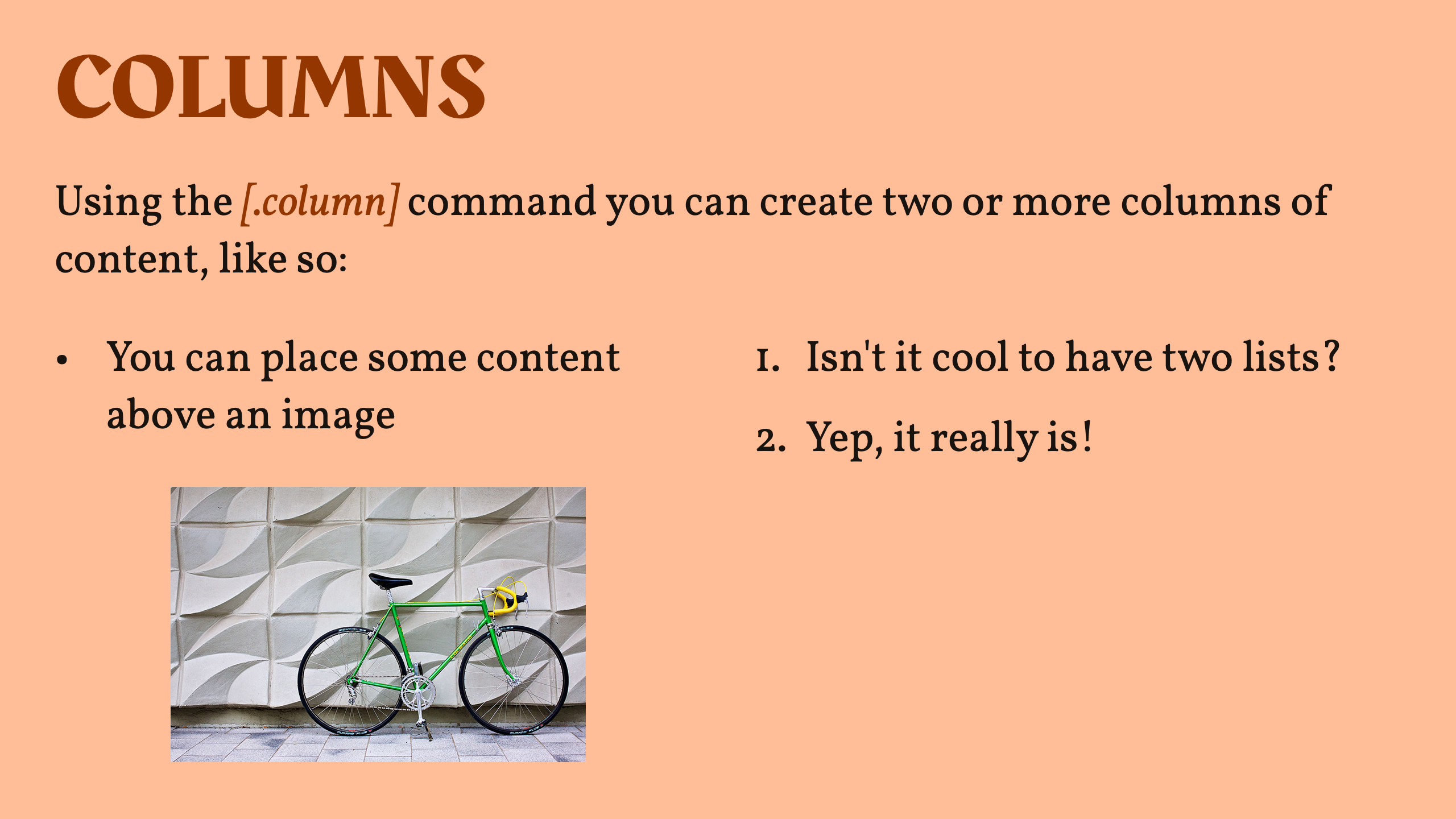
Use columns to compare ideas side by side — especially helpful for case studies, language examples, or any multi-column content. Columns help visually separate contrasting or complementary information. You can use as many columns as you need on a slide, however we recommend keeping it to two or three for readability.
Images & media

Embed images, SVGs, diagrams, videos, and YouTube clips directly from Markdown. Media elements can be resized and aligned to fit your slide layout, while videos can be played directly within Deckset during your presentation.
MathJax (LaTeX equations)
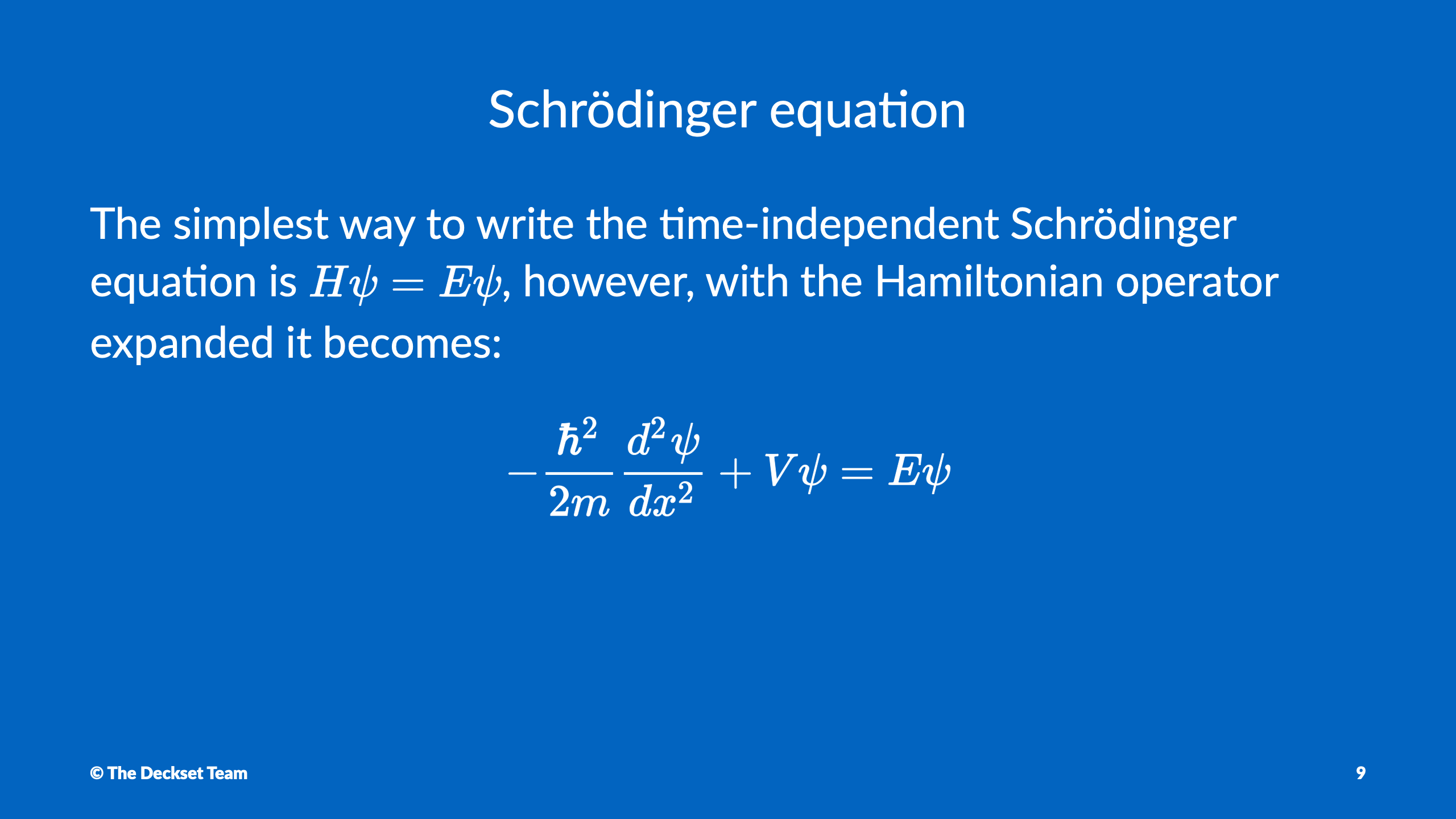
Write mathematical formulas using LaTeX syntax. Deckset renders them via MathJax. Ideal for math, physics, engineering, and other STEM subjects.
Code snippets with syntax highlighting
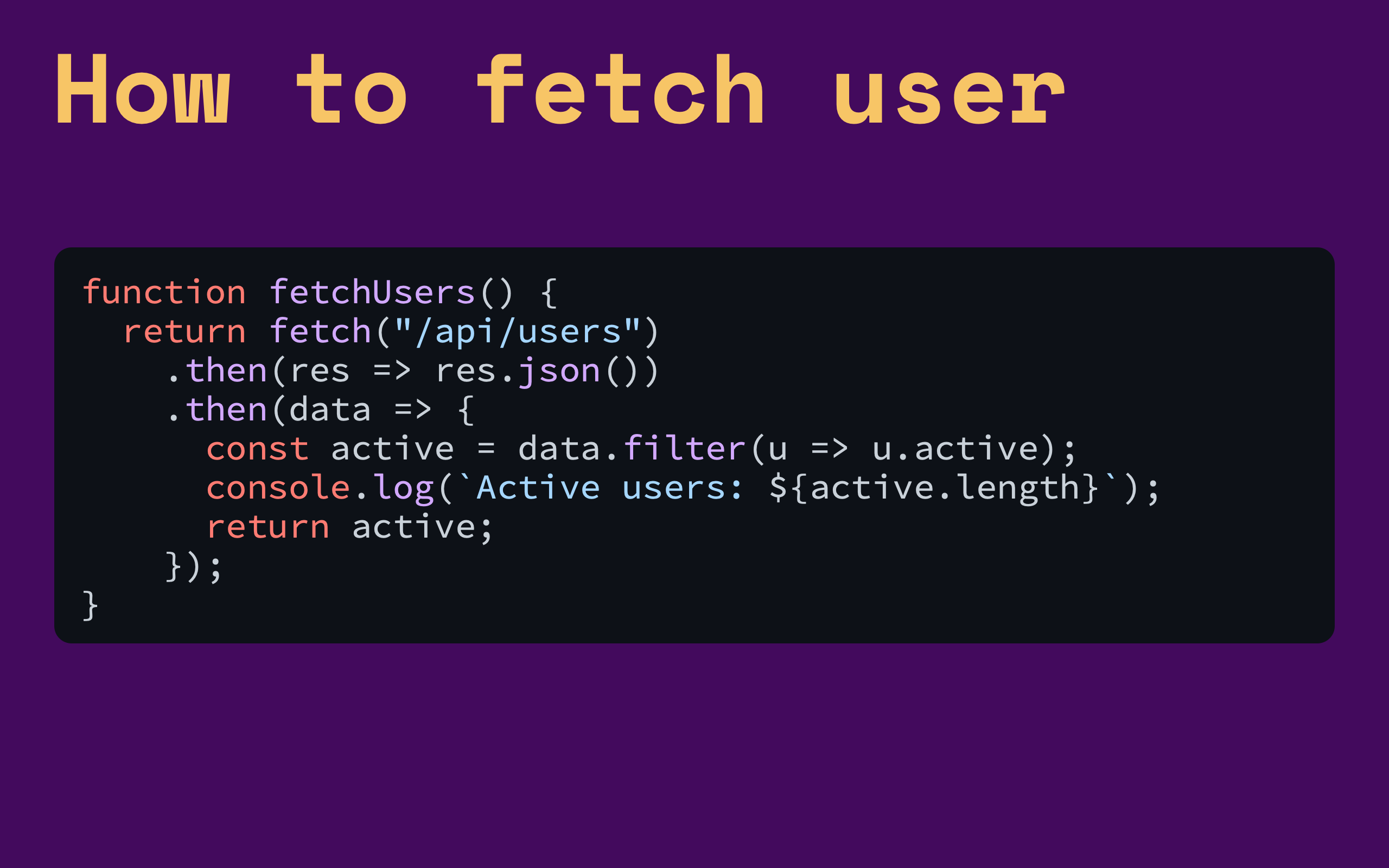
Deckset uses highlight.js under the hood, supporting dozens of programming and markup languages out of the box. Additionally, Deckset adapts the code background color based on the selected theme to ensure code blocks remain legible in bright rooms or projector setups.
Mermaid diagrams
Create flowcharts, sequence diagrams, class diagrams, timelines, and graphs using Mermaid syntax — Deckset renders them directly from your text, unlocking a wide variety of visualization options.
Footers & slide numbers
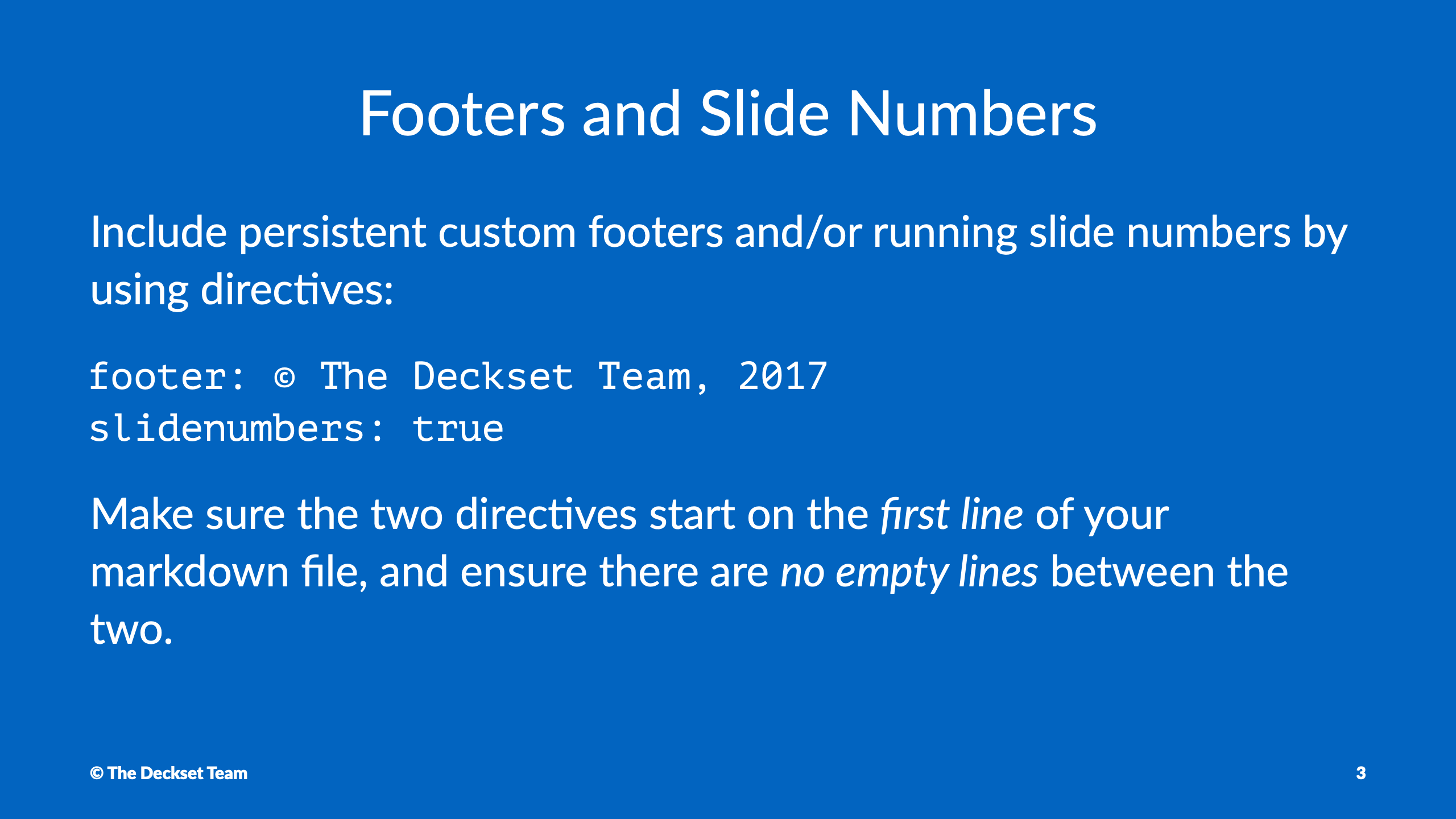
Add slide numbers and footers to provide additional context and help students navigate your lectures.
Footnotes
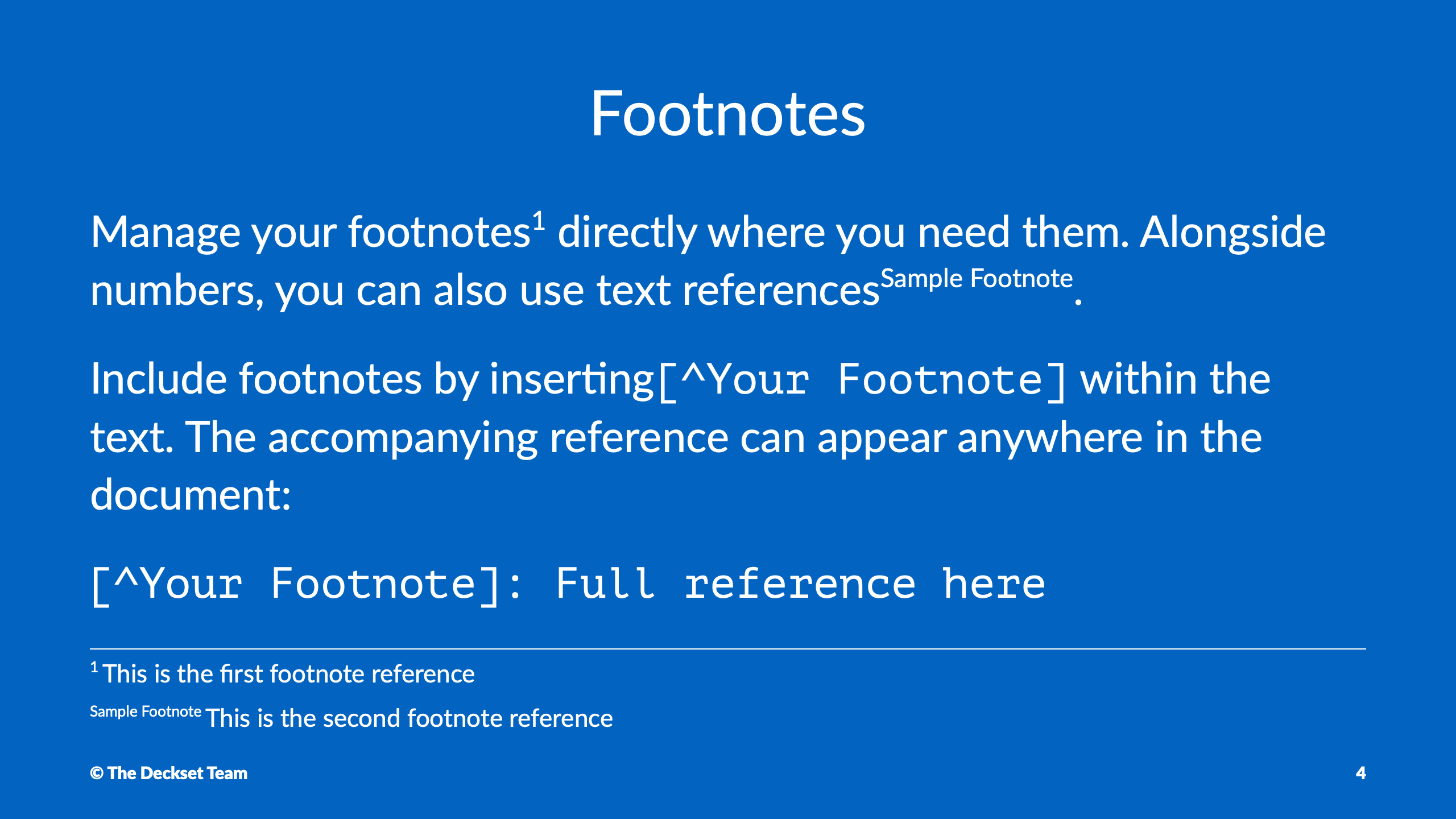
Footnotes are a great way to include citations, references, or additional context without cluttering the main slide content. You can add footnotes in your Markdown using the standard syntax, and Deckset will render them appropriately at the bottom of the slide.
Design & Branding
Choose a theme, adjust a few options, and let Deckset handle typography, colors, and spacing. Your lectures stay consistent and easy to read without design work.
Carefully designed themes
Deckset comes with over 25 themes optimized for clarity and legibility. Each theme balances typography, color, and spacing so your slides are readable on projectors, in bright rooms, and in recordings. We recommend following these practices when selecting themes for your courses:
- Use clean, minimal themes for theory-heavy or formal lectures.
- Pick more colorful themes for workshops, projects, and informal sessions.
- Switch between light and dark backgrounds depending on the room and projector.
- Keep the same theme across the semester to give your course a recognizable visual identity.
Customizing themes to match your institution
You can customize themes directly in Markdown or use Deckset’s visual theme editor to craft a custom theme. Once exported, that theme can be shared and reused across courses or among colleagues to ensure consistent branding.
Learn more about Customizing themes to match your institution
Teaching & Presentation Tools
Deckset helps you teach with confidence. Add private notes, use presenter view, and create materials that work well for a wide range of learners.
Presenter notes for confident delivery
Keep prompts, examples, and reminders in presenter notes instead of on the slide. Paragraphs that start with a caret (^) become presenter notes rather than slide content, and you can also enable an option to treat all paragraphs as presenter notes when you want your Markdown document to behave like a private script by default. Here are some tips for using presenter notes effectively:
- Store definitions, extra explanations, and anecdotes in notes instead of on the slide.
- Add timing cues to stay on track in tightly scheduled classes.
- Include links and references you want to check while teaching.
- Reuse the same notes when you teach the course again in future semesters.
- Include materials your students can access later when you export handouts or PDFs.
Presenter mode for live teaching
Presenter mode gives you a dedicated view: current slide, next slide, and your notes — keeping you prepared throughout your lecture. And with a dedicated rehearsal mode, you can practice your delivery ahead of time to ensure a smooth presentation.
Windowed presentation mode
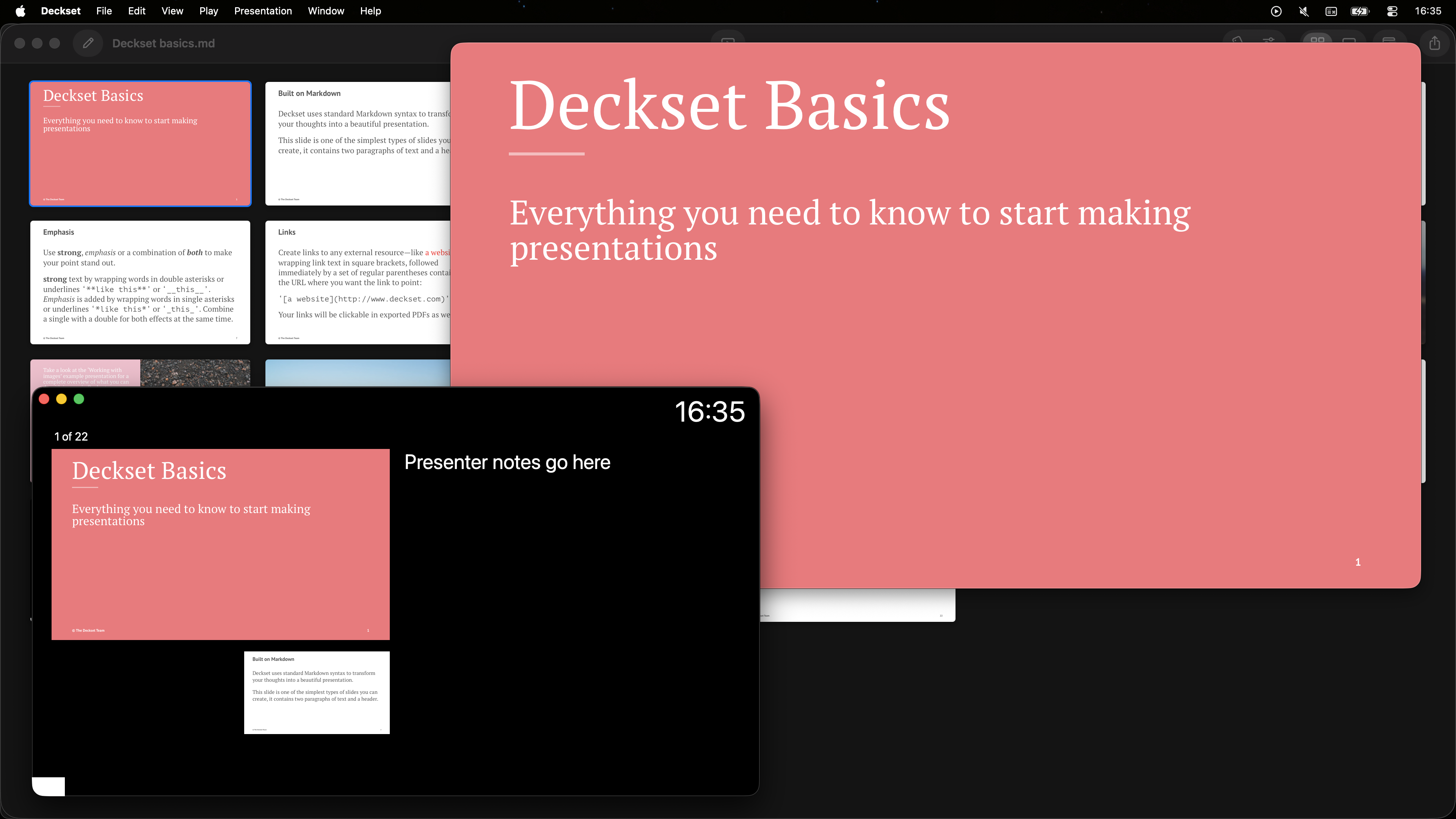
Instead of taking over your entire screen, Deckset can run in a resizable window. This lets you keep an eye on chat, notes, or other apps while teaching — especially useful for hybrid or online classes.
Accessibility features for inclusive teaching
iOS OnlyDeckset can generate PDFs with accessibility tagging and supports descriptive text for images. This helps make your exported handouts more usable for students relying on screen readers and other assistive technologies.
This feature is currently in beta on iOS. macOS support is in development—contact support@deckset.com to learn more.
Saving & Sharing
Because your decks are plain text, saving, sharing, and collaborating on your teaching materials fits neatly into the tools you already use.
Exporting slides, handouts, and notes
Turn your decks into PDFs for your learning platform, email, or course website. Toggle presenter notes on or off depending on whether you’re preparing rehearsal materials or student-friendly handouts. Here are common formats educators use today:
- Presenter-note PDFs that include your private notes for rehearsals or handouts.
- Slide-only PDFs to share with students via email or your LMS.
- Multi-page-per-slide exports to fit several slides on one sheet when you need compact handouts or a quick course recap.
Collaborate and version
Keep decks in Git alongside assignments or sync them via Dropbox/iCloud so co-teachers, TAs, or even students can contribute without wrestling PowerPoint files. Branch experiments, review readable diffs, and roll back to earlier semesters whenever you need.
- Update lectures each semester while keeping a history of previous versions.
- Experiment with alternate explanations or examples on separate branches.
- Accept suggestions or pull requests from colleagues and teaching assistants.
- Reuse and adapt successful lectures across different courses or institutions.
Flip your classroom
Author lessons in Markdown once, then export slide-only PDFs or recorded decks for students to review on their own time—no Deckset account required on their end. Keep presenter notes as facilitator guides, post handouts to your LMS or email list, and reuse updated modules for future or asynchronous cohorts.