
Guide
Deckset for founders and teams
Create pitch decks, board updates, QBRs, and team presentations from Markdown.
Start with Markdown
Keep presentation content in a readable source file that can be versioned, reviewed, and reused. Deckset applies the theme and layout when you preview or present.
Structure the presentation
Write in any text editor using Markdown. Deckset turns your Markdown into slides and keeps optional presenter notes in a private presenter view. You can separate slides with three dashes (---) or enable the option to treat headers as slide dividers when that better matches your document. Here’s how your Markdown maps to slides:
- Top-level headings define sections and, with treat-headers-as-slide-dividers enabled, can act as slide boundaries.
-
Slide separators
(
---on a single line with blank lines around it) always start a new slide. - Subheadings organize supporting details within a section.
- Paragraphs and lists become your key talking points on each slide.
- Presenter notes keep supporting context private in presenter view — useful for investor talk tracks and Q&A prep.
- Aspect ratio lets you match meeting rooms, projectors, and video calls (e.g., 16:9).
Drop in your existing docs
Already writing strategy docs, updates, or pitch outlines in Markdown? Drag the file into Deckset to create a presentation. If you enable treat-headers-as-slide-dividers, section titles become slides. If you toggle treat-paragraphs-as-presenter-notes, your document becomes a private script while keeping slides concise.
AI-assisted drafting
Use AI to turn raw notes into a pitch or QBR outline, structure the presentation, and convert raw data into Markdown tables. Because the source is plain text, AI can review the structure and point to specific slides that need work.
Keep source files easy to maintain
Keep the source file beside your strategy docs and metrics notes. You get readable diffs, easier collaboration, and fewer “final_v17” slide files.
Business presentations
Use the same source files for pitches, updates, reviews, and planning. Start from a reusable structure, then tailor the slides for the meeting.
Investor pitch decks
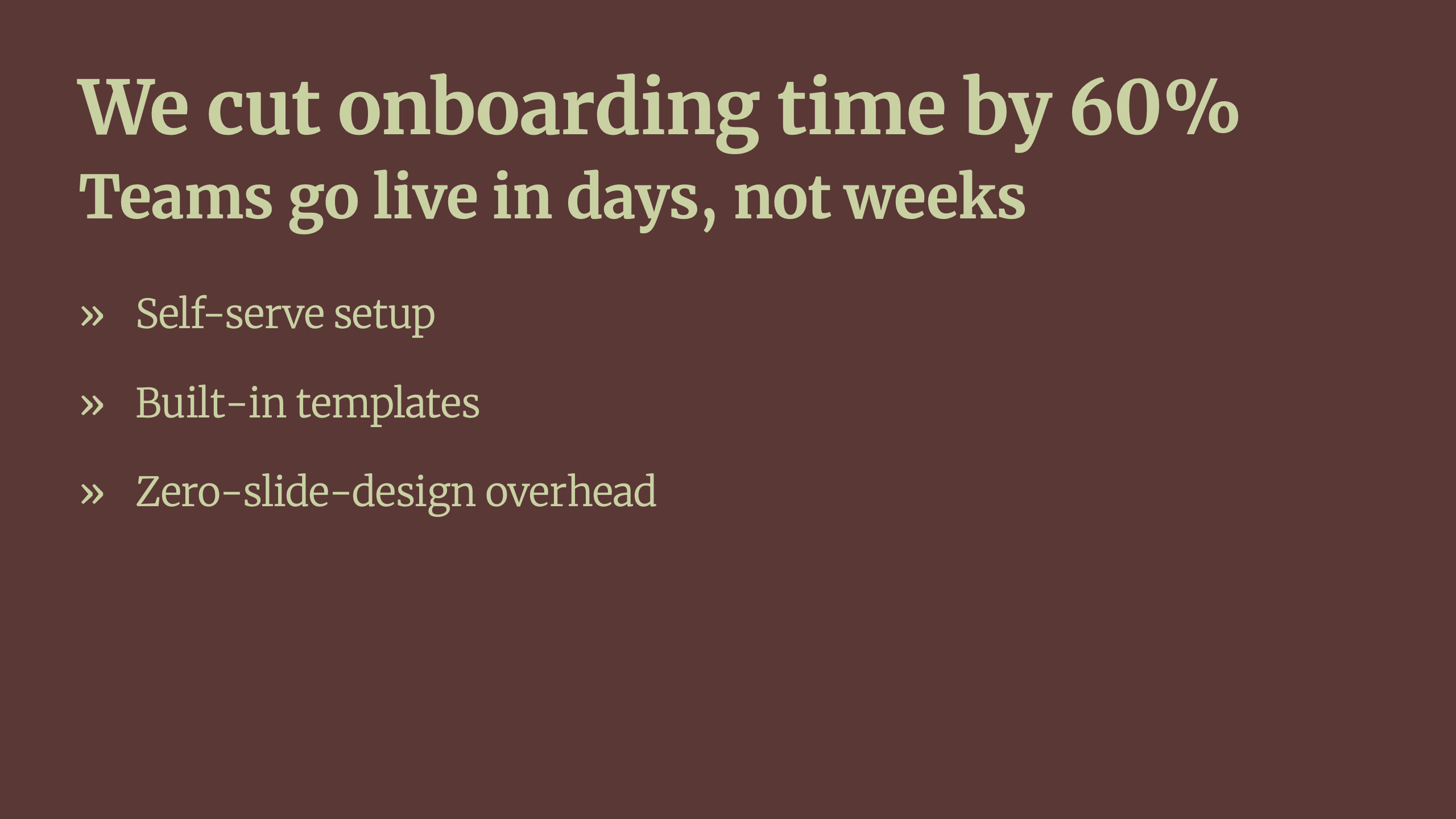
Write your pitch in Markdown and keep slides focused on the essentials. Put the full talk track in presenter notes, then revise it between meetings without reformatting.
- One claim per slide: use headings as conclusions (not just topics).
- Talk track in notes: keep context, proof points, and transitions off the slide.
- Fast iteration: revise the pitch in text and Deckset keeps the slide layouts consistent.
Board decks and QBRs
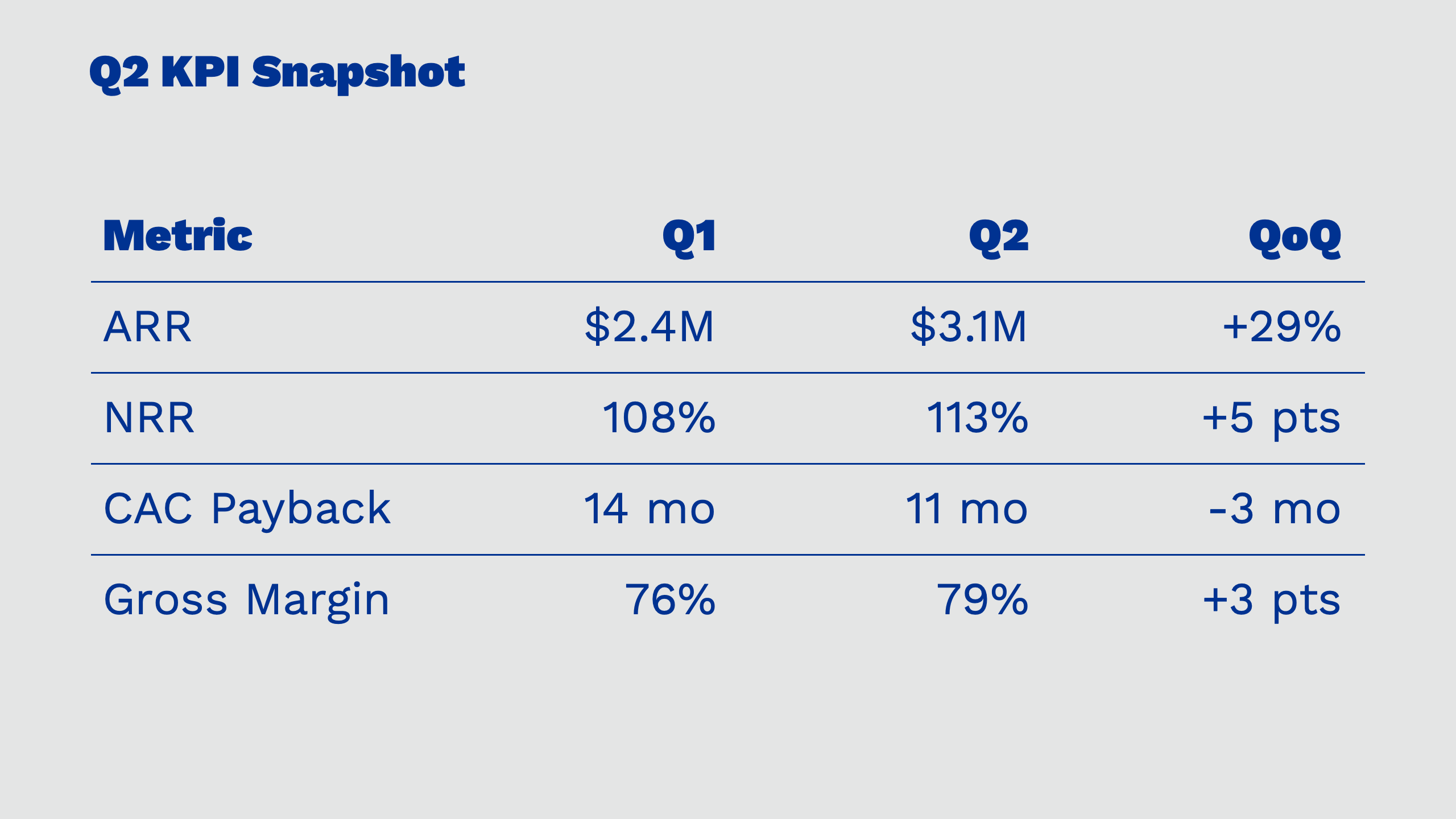
Start from Markdown, choose a theme for consistent layouts, add KPI tables in plain text, then export either slide-only PDFs or PDFs with presenter notes for asynchronous review—without rebuilding slide layouts.
Weekly updates and leadership readouts
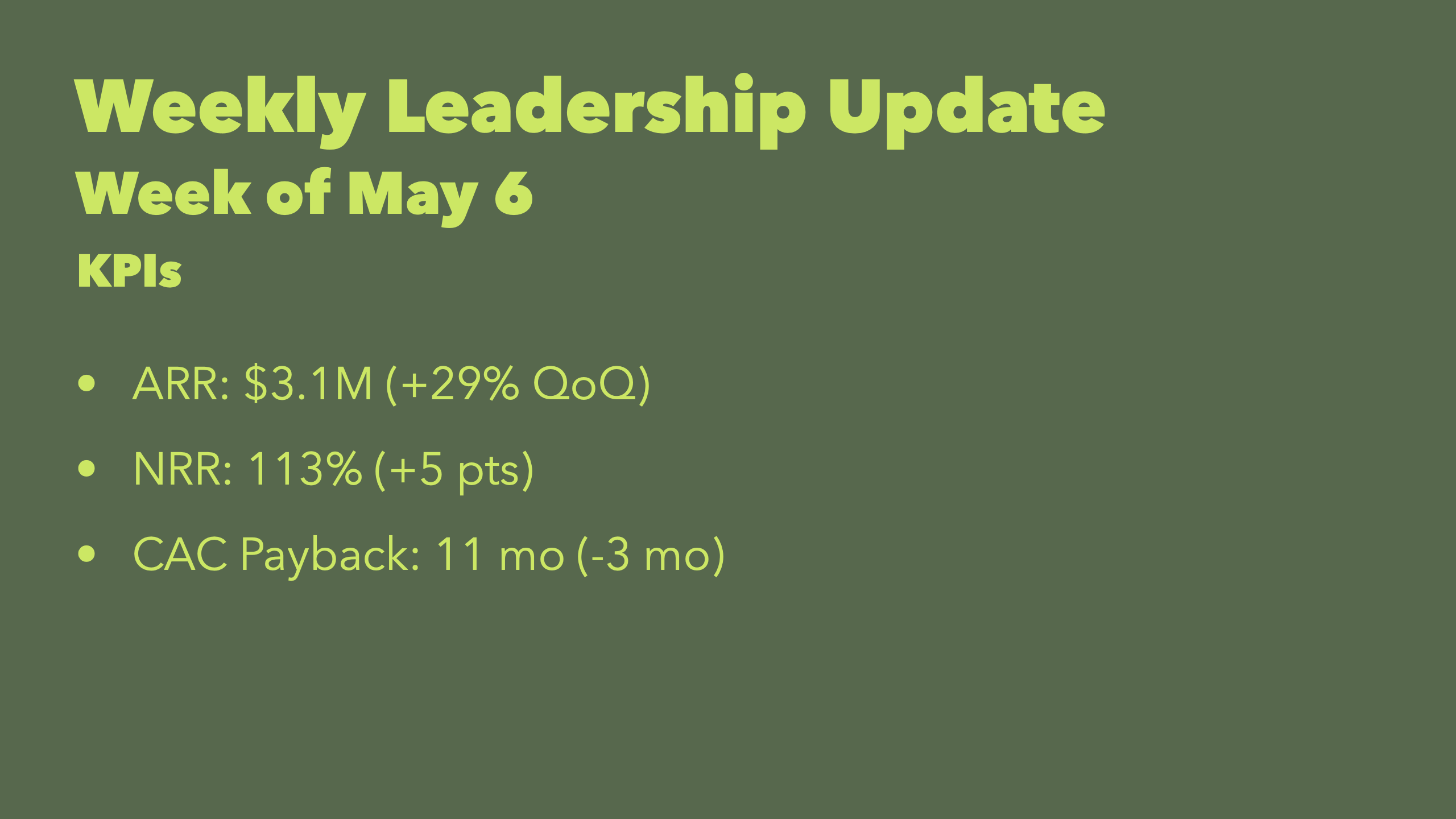
Turn weekly leadership notes into a short presentation. Use --- to separate KPIs, wins, risks, and asks, and keep lists concise for quick scanning.
Product reviews and roadmap alignment
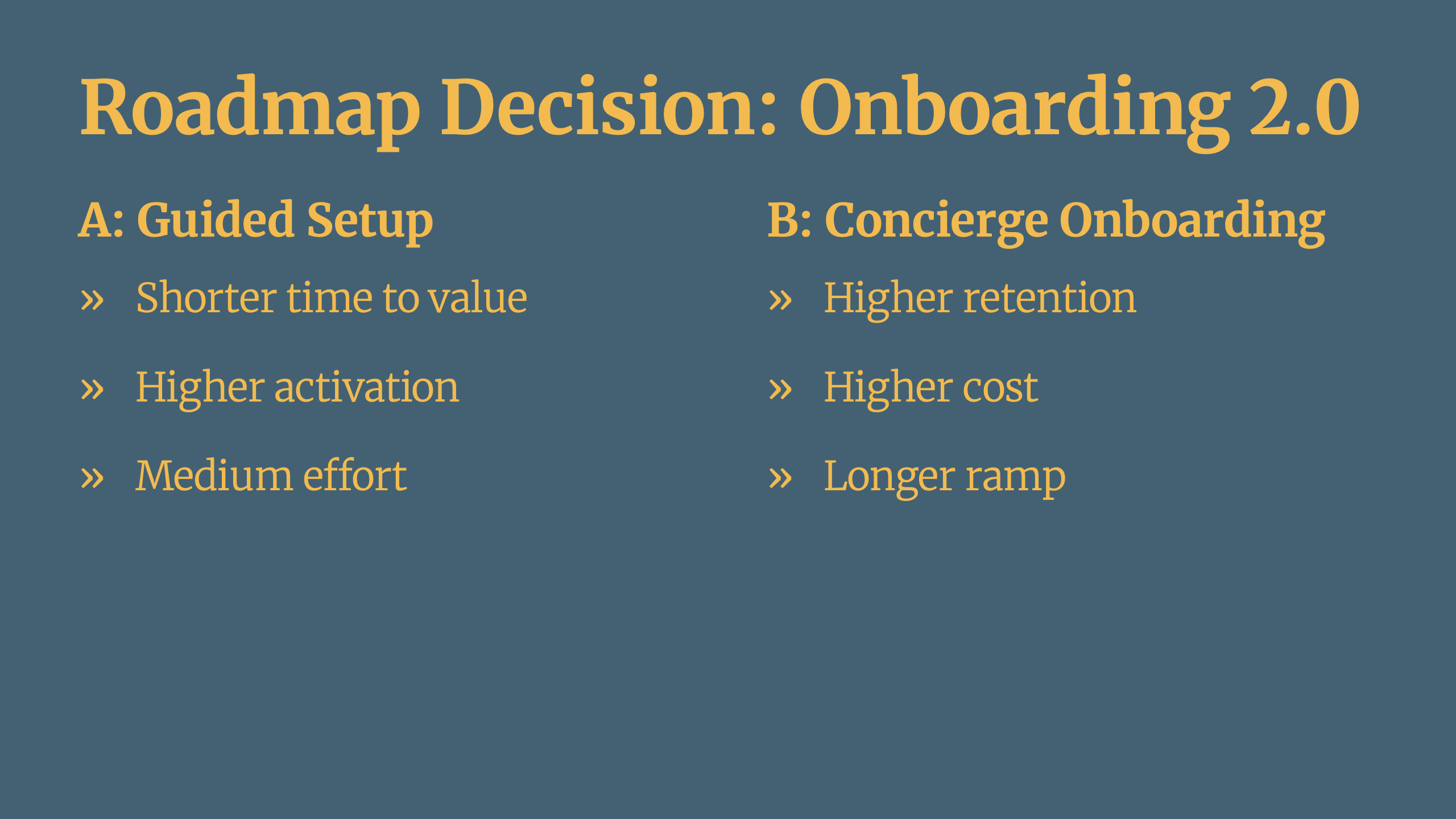
Paste product review notes in Markdown, turn on treat-headers-as-slide-dividers and treat-paragraphs-as-presenter-notes, and create slides with presenter notes. Use columns for option comparisons and tables for decision matrices and experiment outcomes.
Client proposals and consultative decks
Reuse a proven presentation structure across clients while tailoring each proposal. Plain text makes it easy to copy, adapt, and keep layouts consistent.
Content types
Business decks depend on structure and clarity: crisp lists, comparisons, metrics, and visuals. Deckset supports a wide range of content types directly from Markdown.
Status updates with lists
Use bullet lists for highlights, numbered lists for action plans, and nested lists for risks with mitigations — without turning slides into walls of text.
- Bullet lists work well for top-line highlights and weekly deltas.
- Numbered lists are ideal for plans, next steps, and timelines.
- Nested lists help frame risks, blockers, and mitigations clearly.
Tables for metrics and comparisons
Deckset supports Markdown tables (GitHub Flavored Markdown), making it easy to show KPI snapshots, cohort summaries, pricing tiers, or a simple decision matrix.
Charts and screenshots
Paste charts from BI tools or dashboards as images to keep metric context intact.
Columns for side-by-side decisions
Use columns to compare options, tradeoffs, or plans (e.g., Plan A vs Plan B). Two or three columns are typically best for readability.
Images and media
Drop in charts, screenshots, product mockups, or customer quotes as images. Resize and align the media to fit the slide and theme.
Mermaid diagrams for flows
Create simple flowcharts for funnels, lifecycle stages, or process maps using Mermaid syntax — rendered directly from text.
Footers and slide numbers
Add slide numbers and footers so stakeholders can reference and discuss specific slides, especially when reviewing a PDF outside the meeting.
Design and branding
Choose a theme for consistent typography, colors, and spacing across the presentation.
Consistency beats decoration
Business decks work best when they’re predictable and easy to scan. Choose a readable theme, keep typography consistent, and use structure to make claims and metrics easy to follow.
- Use minimal themes for strategy, metrics, and investor contexts.
- Keep a single theme across teams to make company updates instantly recognizable.
- Use imagery sparingly to support a point, not to decorate.
Custom themes for your brand
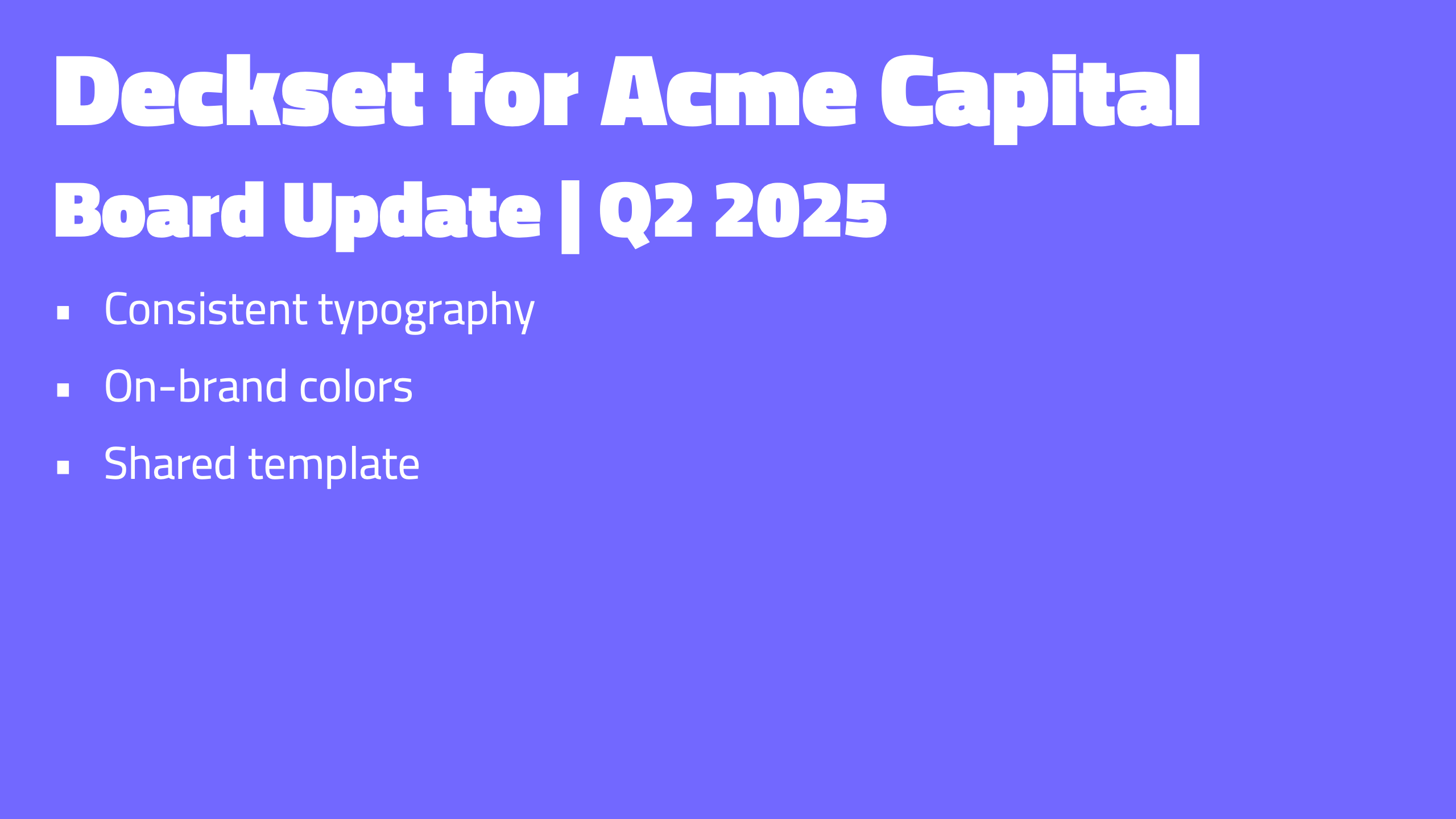
Customize themes in Markdown or with Deckset’s visual theme editor, then share them so pitch, board, and update decks use the same colors and type settings.
- Typography and colors match your brand palette and type system.
- Theme sharing: reuse one approved look across teams.
Design system alignment
Presentation tools
Present in meetings, demos, and investor calls. Keep your talk track in presenter notes, control pacing, and export PDFs for review.
Presenter notes for your talk track
Keep your talk track, proof points, and transitions in presenter notes instead of on the slide. Paragraphs that start with a caret (^) become presenter notes, and you can enable treat-paragraphs-as-presenter-notes when your Markdown is primarily a private script. Include the notes when stakeholders need to review a founder update outside a meeting.
Build steps for pacing
Reveal bullets step by step to guide attention in a room or on a call — especially useful for complex decisions and metric explanations.
Windowed presentation mode
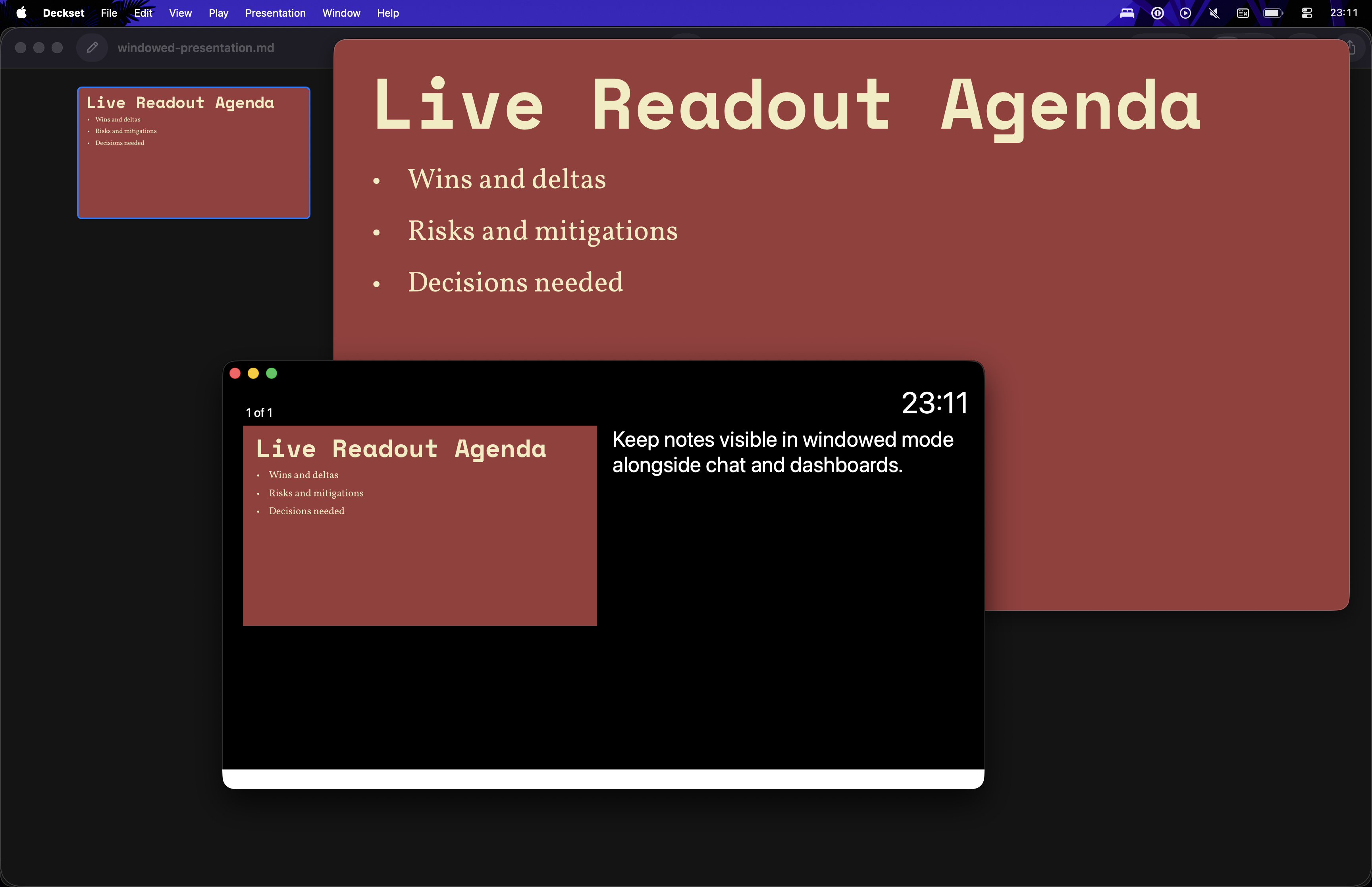
Run Deckset in a resizable window so you can keep notes, dashboards, or chat visible during video calls and hybrid meetings.
Saving and sharing
Plain-text source files are easy to version, review, and reuse. Export PDFs for stakeholders, share source files with collaborators, and avoid slide-file sprawl.
Exporting PDFs for review
Export slide-only PDFs for stakeholders, or include presenter notes when you need to share the talk track. This works well for leadership updates, board decks, and investor follow-ups.
- Board-ready PDFs: share with presenter notes for context or slide-only for executive scans.
- Slide-only PDFs for quick scanning and decision-making.
- PDFs with presenter notes when your audience needs context without a meeting.
- Multiple slides per page for compact printouts or meeting packets.
Collaborate and version
Keep presentations in Git for an audit trail, sync them with iCloud or Dropbox, or share Markdown alongside the rest of your docs. Review changes as readable diffs and keep a clear history.