
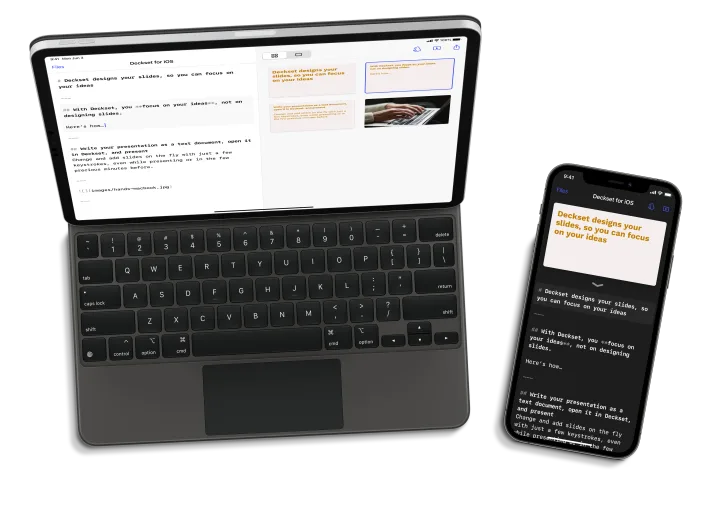
Write your notes
Start with notes, an outline, or a draft. Deckset turns it into slides as you write.
Deckset for iPhone and iPad
Write, edit, preview, and present on iPhone or iPad. Use the same presentation files and themes on your Mac, iPad, and iPhone.
Requires iOS or iPadOS 17.0 or newer.
Write on iPad. Present from iPhone.
Write, preview, present
On iPad, edit your notes and preview the slides side by side. On iPhone, write and preview in the same app.
Start with notes, an outline, or a draft. Deckset turns it into slides as you write.
Preview the slides while you edit. Deckset applies the theme and layout.
Switch to presentation mode on the same iPhone or iPad when it is time to share.
One presentation, every device
Text Bundle files keep your notes and media together. Bring the same files and custom themes to Mac, iPad, and iPhone, so the slides look the same on each one.
Read about file compatibilityAll the essentials
Writing
Preview
Presenting
Files
Themes
Continuity
Good to know
Learn how licenses, Text Bundle files, and themes work across devices.
No. Deckset for iPhone and iPad is a separate purchase. Learn more about the iOS app.
Yes. Convert the presentation to a Text Bundle before opening it in the iOS app. Text Bundle files keep media such as images, GIFs, and videos with the presentation.
Yes. Export your existing themes and open the file in the iOS app. Theme customizations work on iPhone and iPad, and you can also export a theme from the iOS app and import it on your Mac. The iOS app does not currently support editing every theme setting, so please let us know if something you need is missing.
Yes. The Mac app supports Text Bundle files. Click the Edit button, or press Cmd + E, to open the underlying Markdown file in your favorite text editor.
Yes. If you have already filled out the educational discount form, email us at support@deckset.com. Otherwise, fill out the form and we’ll get back to you.
Deckset for iPhone and iPad
Write your notes, preview the slides, then present from the same app.