
Guide
Deckset for educators
Build lectures, handouts, and flipped-classroom materials from the notes you already have.
Start with your notes
Deckset turns Markdown files into readable lecture slides. Write the material, then let Deckset handle layouts, themes, and presenting.
From plain text to lecture slides
Write your lecture in any text editor using Markdown. Deckset turns the source into slides and keeps optional presenter notes off the slides. Separate slides with three dashes (---), or enable the option to treat headers as slide dividers when that better matches how you write. Here’s how your Markdown maps to the presentation:
- Top-level headings introduce new sections and, with the treat-headers-as-slide-dividers option enabled, can act as slide boundaries.
- Slide separators (— on a single line with blank lines around it) always start a new slide.
- Subheadings help structure content within or across related slides.
- Paragraphs and lists become the main body content of each slide by default.
- Presenter notes keep extra text private in presenter view. You can also enable an option to treat all paragraphs as presenter notes when you want your Markdown to be a private script by default.
- Aspect ratio can be adjusted to suit different screens and projectors (e.g., 16:9 or 4:3).
Drop in your existing notes
Already writing your lectures in Markdown? Drag the file into Deckset and enable the option to treat headers as slide dividers. If you turn on treat-paragraphs-as-presenter-notes, each paragraph under a heading becomes private presenter notes instead of slide content. Export the presentation with or without notes for students.
Start with an educator template
Deckset ships with example presentations, including one for educators. Open it from the welcome window or the Help menu to see Markdown samples for footers, slide numbers, nested lists, footnotes, MathJax, captioned media, and other features—then replace the examples with your own content.
Text emphasis and inline code
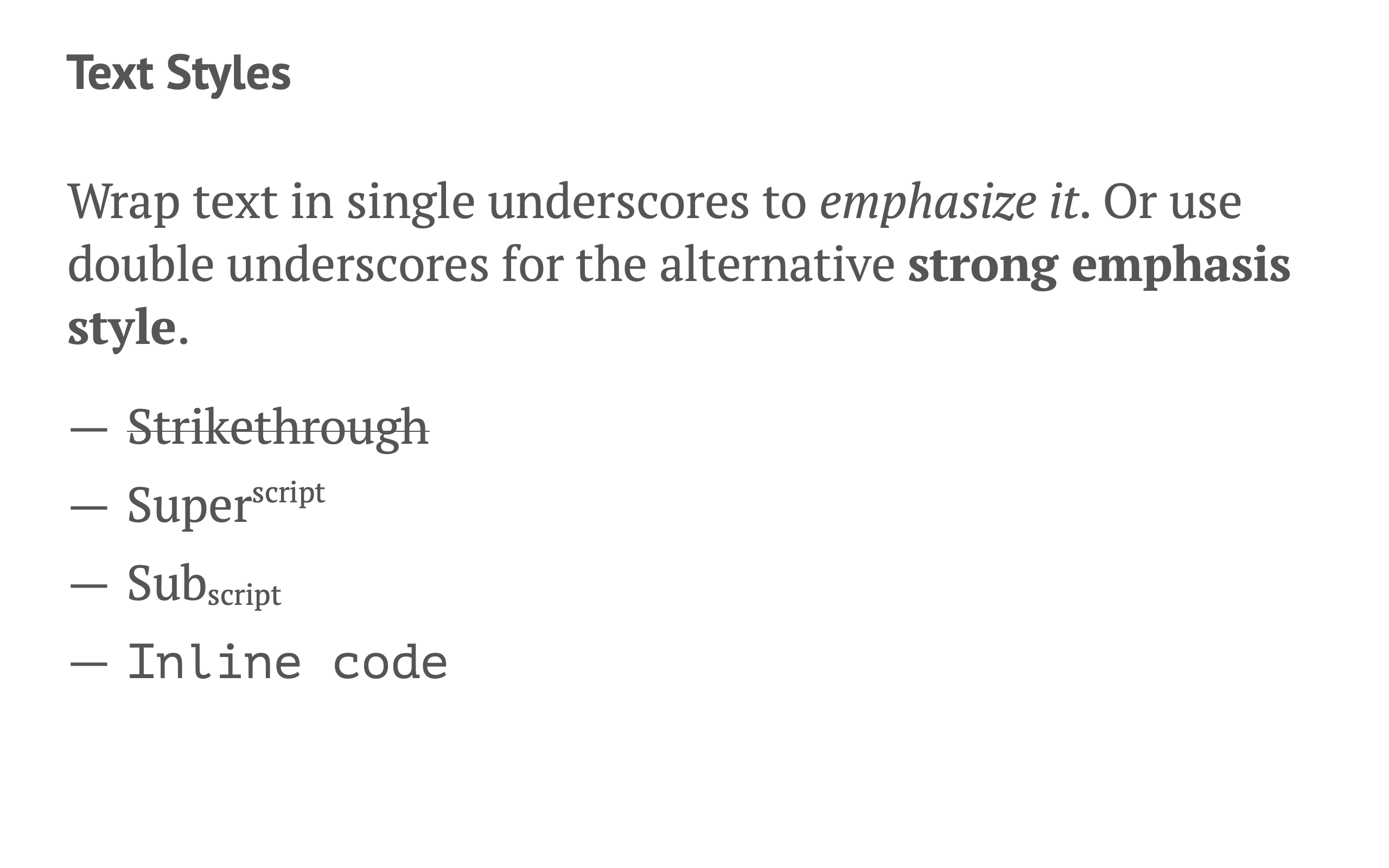
Keep everything in Markdown but still highlight terminology, show code inline, strike out revisions, or add superscripts/subscripts for equations and citations.
Keep course materials in plain text
Keep lesson source files in plain text instead of a slide editor. Track changes, share edits, and update material for the next semester without rebuilding the presentation.
Educator pricing
Deckset offers educators 50% off. Fill out the form on our education page to receive the discount for your own license, and email support@deckset.com if you need multiple seats.
Teach with code, math, and media
Use Markdown to build lessons with lists, code, equations, media, and diagrams. Deckset renders each of these content types directly from your source file.
Structure concepts with lists
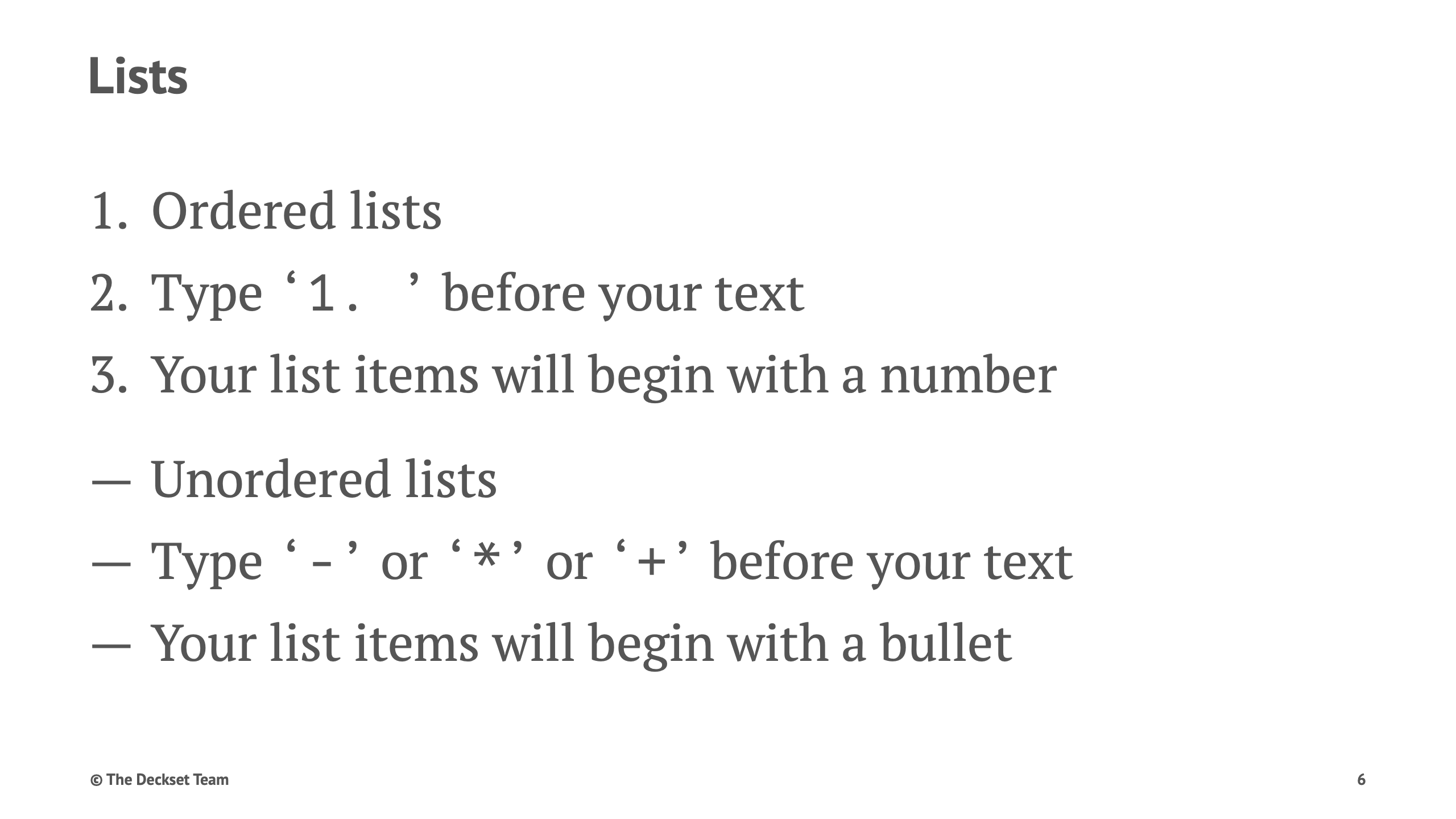
Use bullet points and nested lists to present complex topics step by step so students can follow your reasoning. Deckset supports a few simple patterns that make structuring information easy:
- Bullet lists are ideal for key ideas and takeaways.
- Numbered lists work well for procedures, algorithms, and proofs.
- Nested lists help you show main ideas with supporting details.
Tables
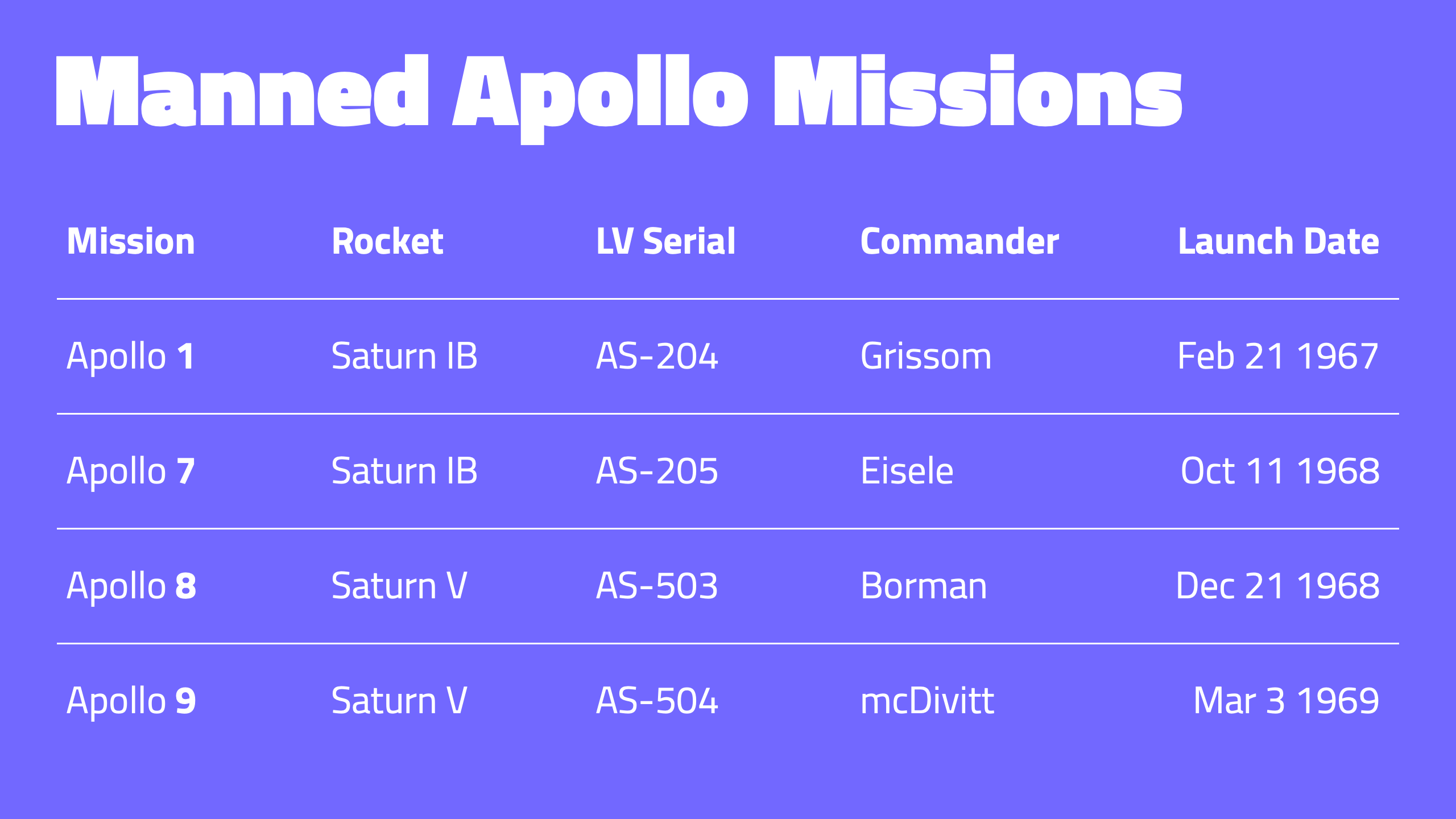
Use Markdown tables (as defined in GitHub Flavored Markdown) to compare concepts, present data, or show structured information. Tables remain readable when projected or printed.
Columns
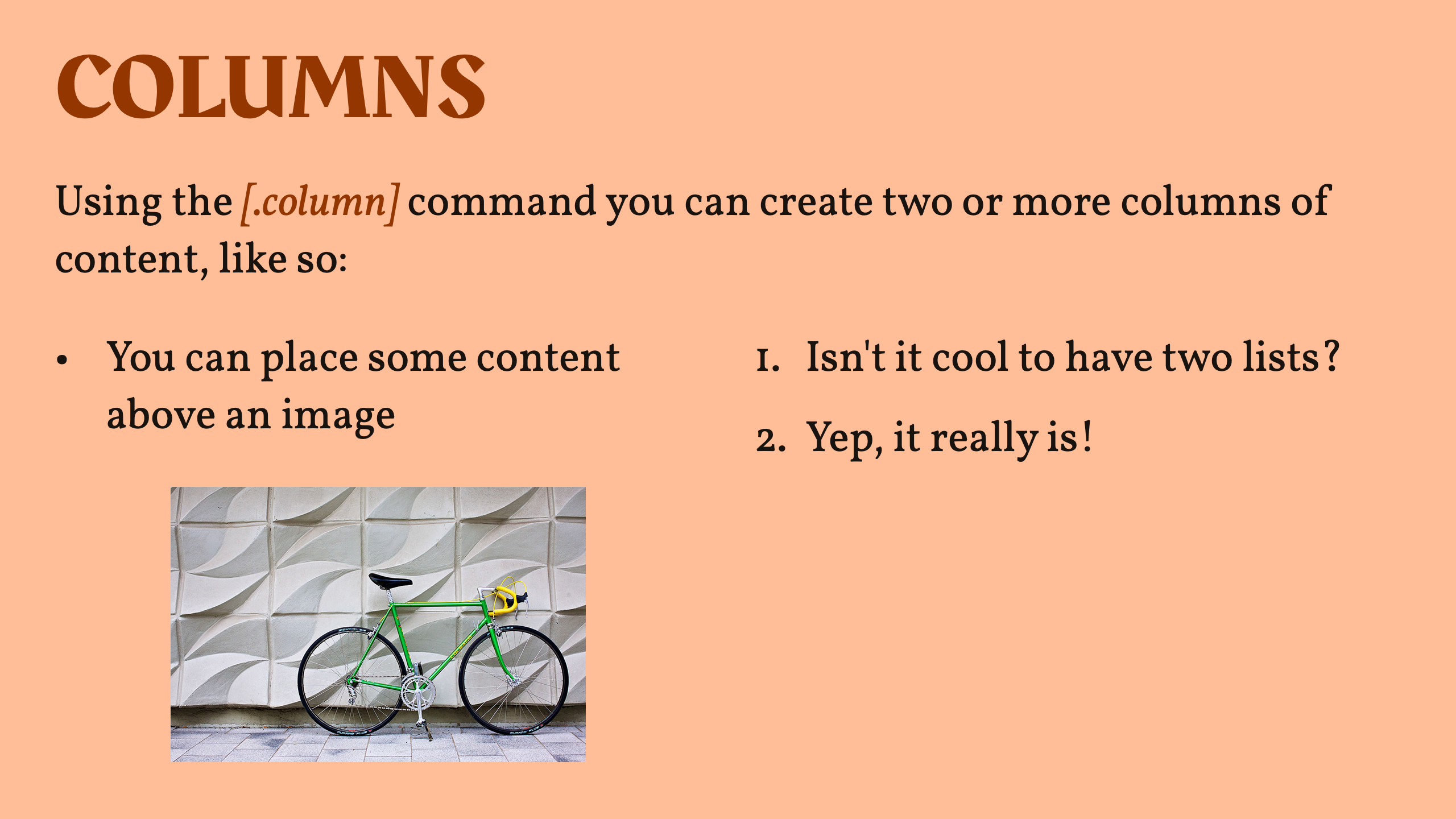
Use columns to compare ideas side by side, especially in case studies and language examples. Two or three columns usually keep the slide readable.
Images and media
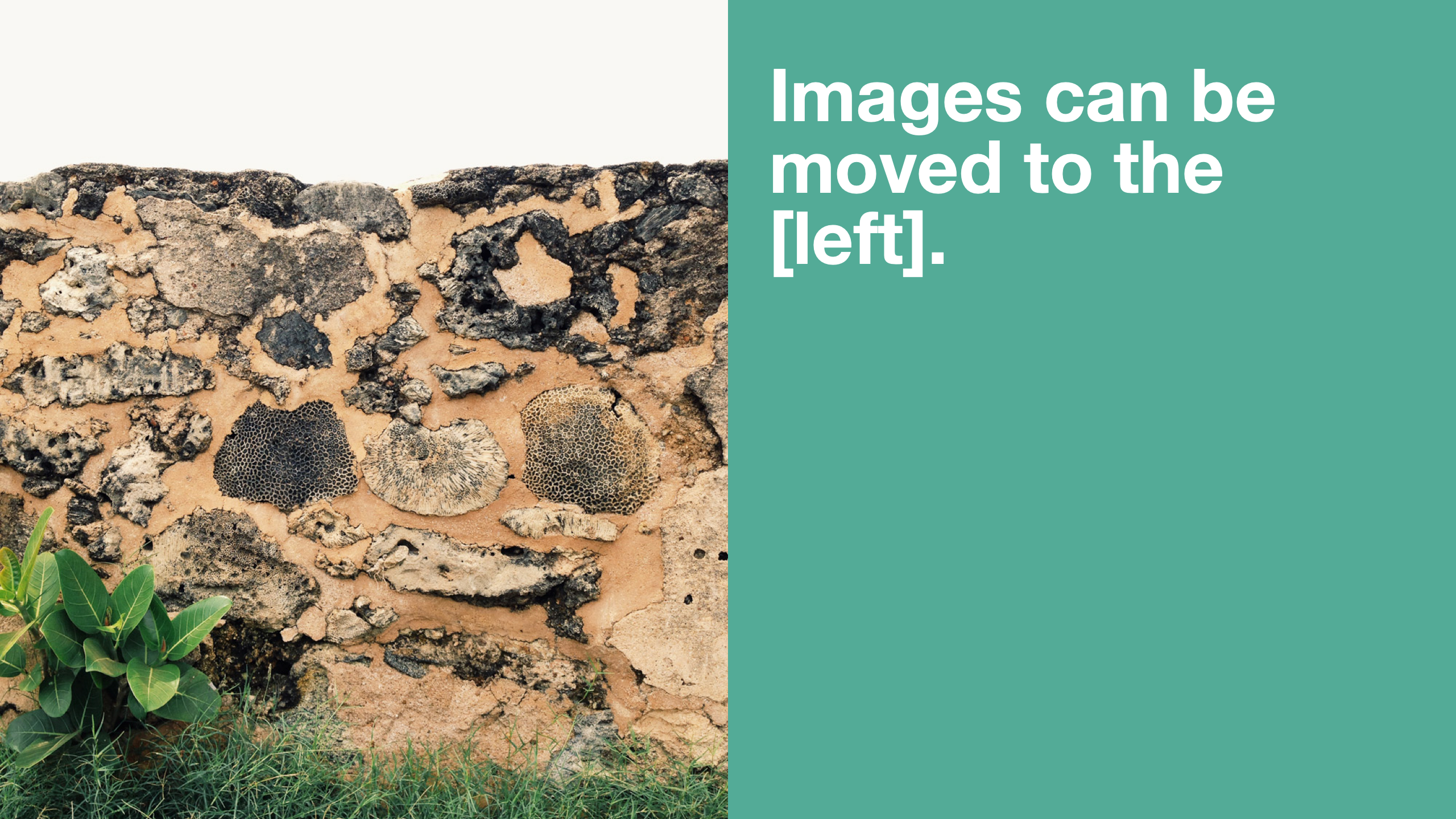
Embed images, SVGs, diagrams, videos, and YouTube clips directly from Markdown. Resize and align media to fit the slide. Videos play directly in Deckset during your presentation.
MathJax (LaTeX equations)
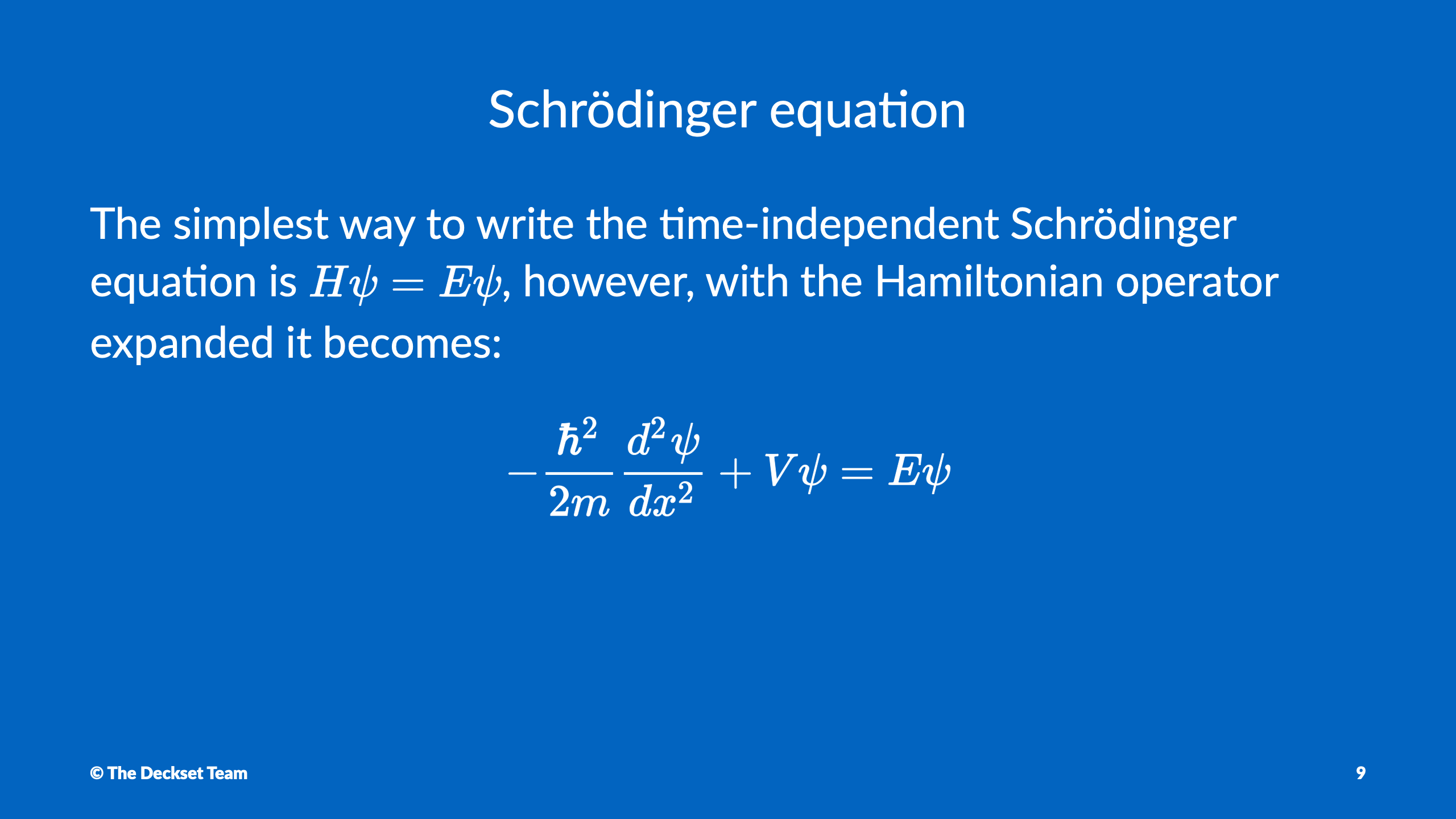
Write mathematical formulas using LaTeX syntax. Deckset renders them via MathJax. Ideal for math, physics, engineering, and other STEM subjects.
Code snippets with syntax highlighting
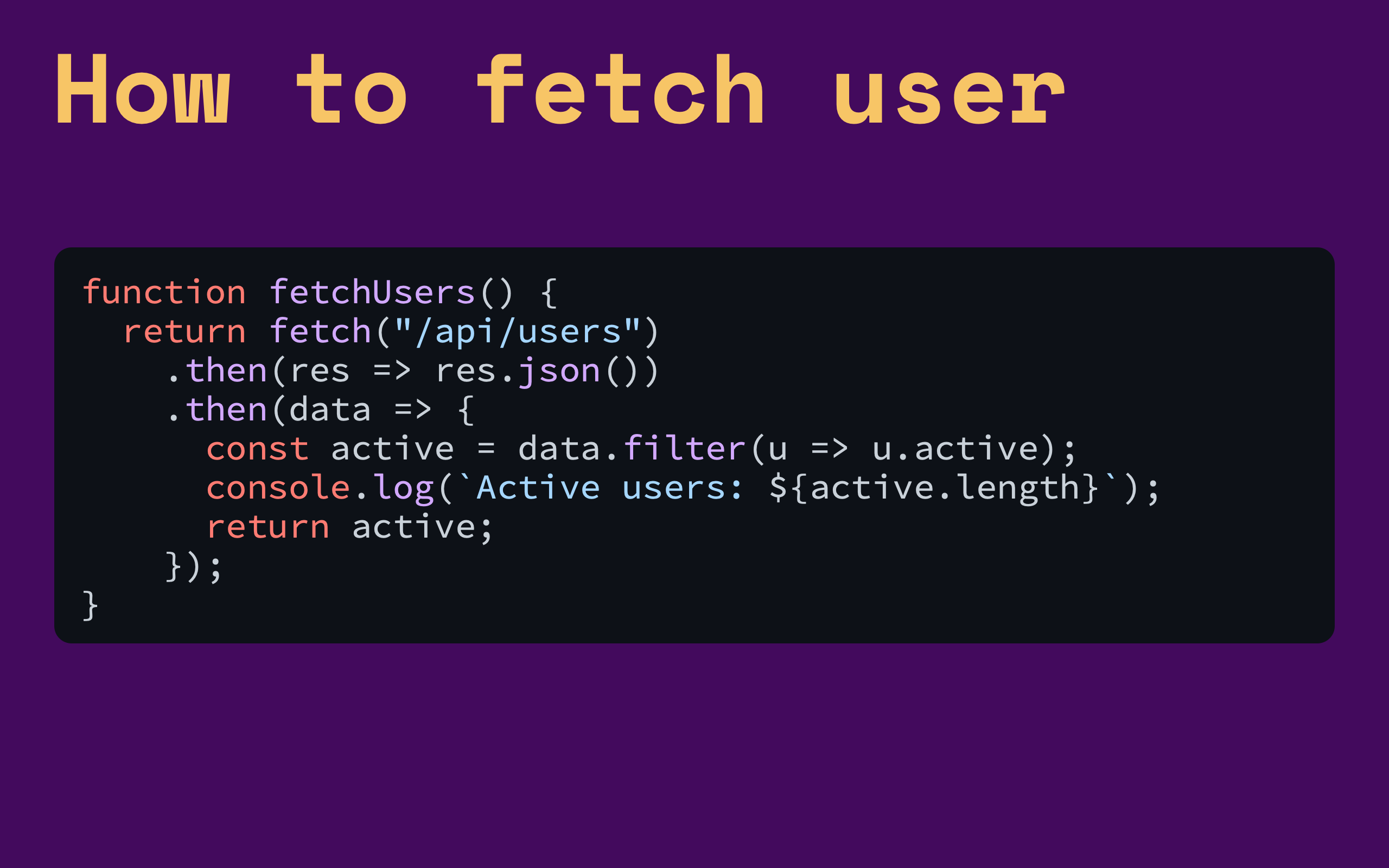
Deckset uses highlight.js to support dozens of programming and markup languages. It adjusts the code block background for the selected theme to keep the code legible.
Mermaid diagrams
Create flowcharts, sequence diagrams, class diagrams, timelines, and graphs with Mermaid syntax. Deckset renders them directly from your text.
Footers and slide numbers
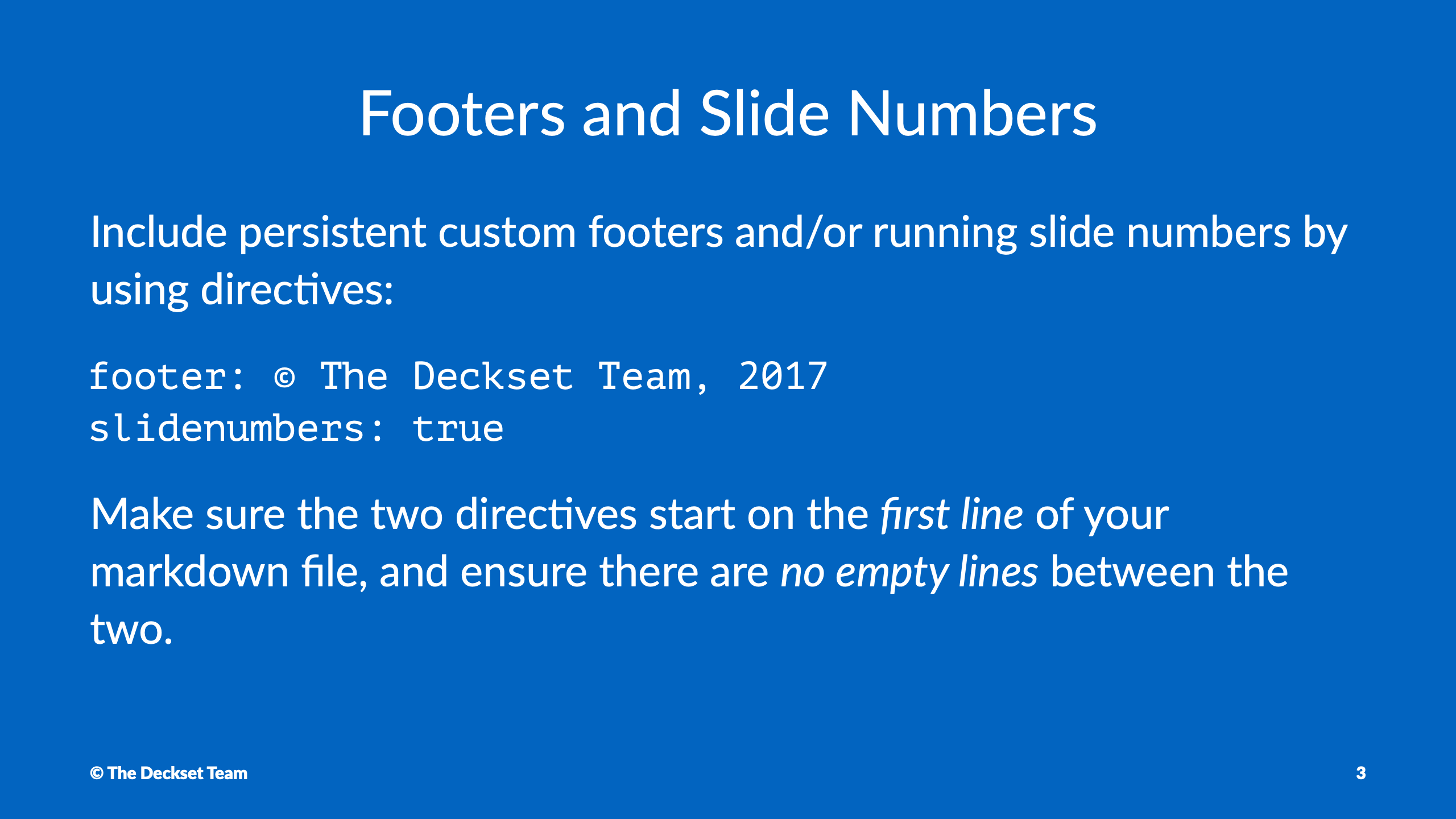
Add slide numbers and footers to provide additional context and help students navigate your lectures.
Footnotes
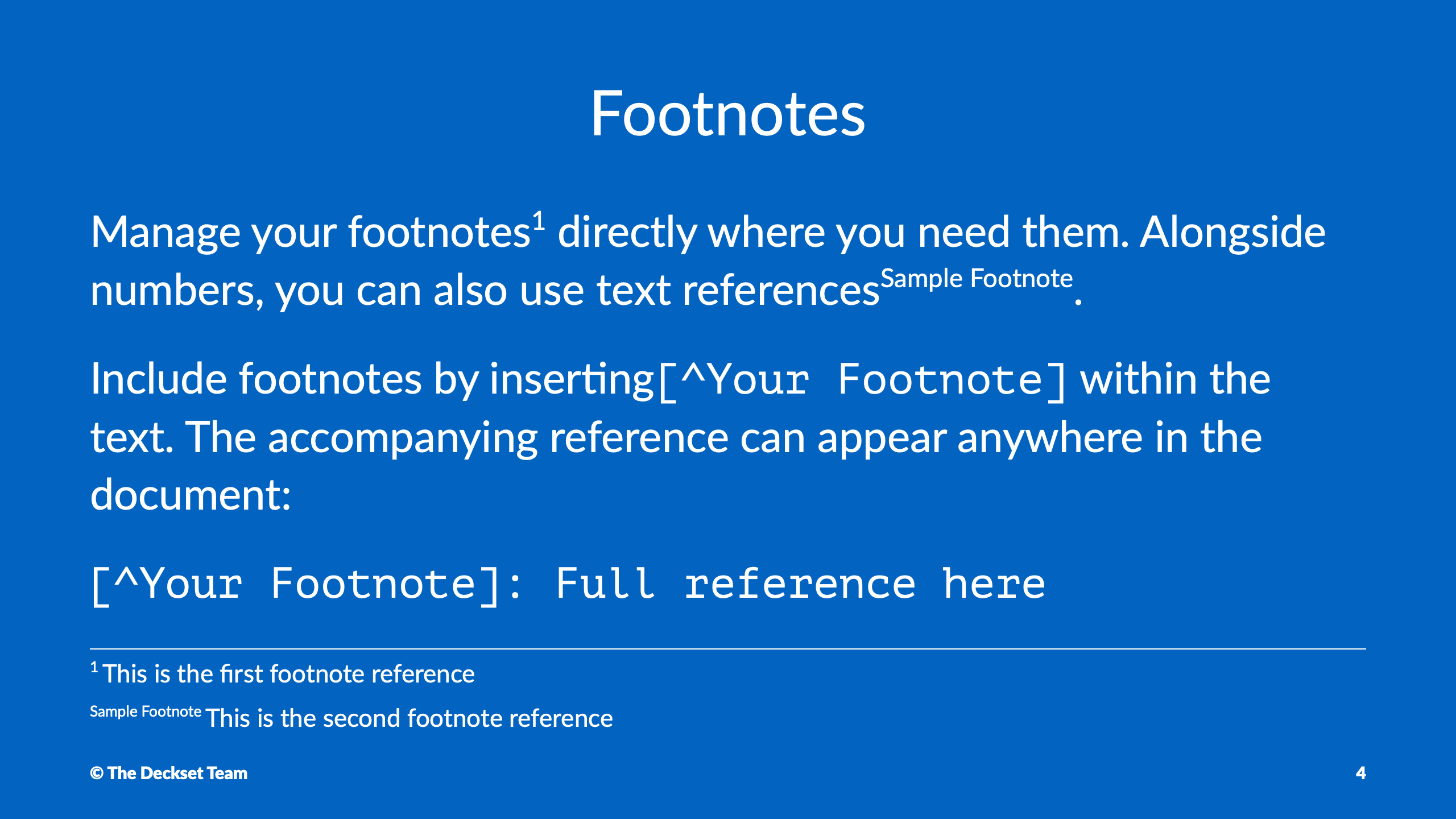
Use standard Markdown footnotes for citations, references, or extra context. Deckset places them at the bottom of the slide.
Themes and layouts
Choose a theme, adjust a few options, and let Deckset handle typography, colors, and spacing. Your lectures stay consistent and easy to read without design work.
Themes for readable slides
Deckset comes with more than 25 built-in themes designed for readable slides. Each theme sets the typography, color, and spacing. Consider these points when choosing a theme for your course:
- Use clean, minimal themes for theory-heavy or formal lectures.
- Pick more colorful themes for workshops, projects, and informal sessions.
- Switch between light and dark backgrounds depending on the room and projector.
- Keep the same theme across a course so each lecture uses the same layout and colors.
Create a reusable course theme
Customize themes directly in Markdown or use Deckset’s visual theme editor to create one. Export the theme to share it with colleagues or reuse it across courses, so every presentation starts with the same design.
Teach and present
Keep teaching notes private, see what comes next, and export material students can use after class.
Presenter notes for confident delivery
Keep prompts, examples, and reminders in presenter notes instead of on the slide. Paragraphs that start with a caret (^) become presenter notes rather than slide content, and you can also enable an option to treat all paragraphs as presenter notes when you want your Markdown document to behave like a private script by default. Here are some tips for using presenter notes effectively:
- Store definitions, extra explanations, and anecdotes in notes instead of on the slide.
- Add timing cues to stay on track in tightly scheduled classes.
- Include links and references you want to check while teaching.
- Reuse the same notes when you teach the course again in future semesters.
- Include materials your students can access later when you export handouts or PDFs.
Presenter mode for live teaching
Presenter mode shows the current slide, next slide, and your notes in one view. Use rehearsal mode to practice timing and delivery before class.
Windowed presentation mode
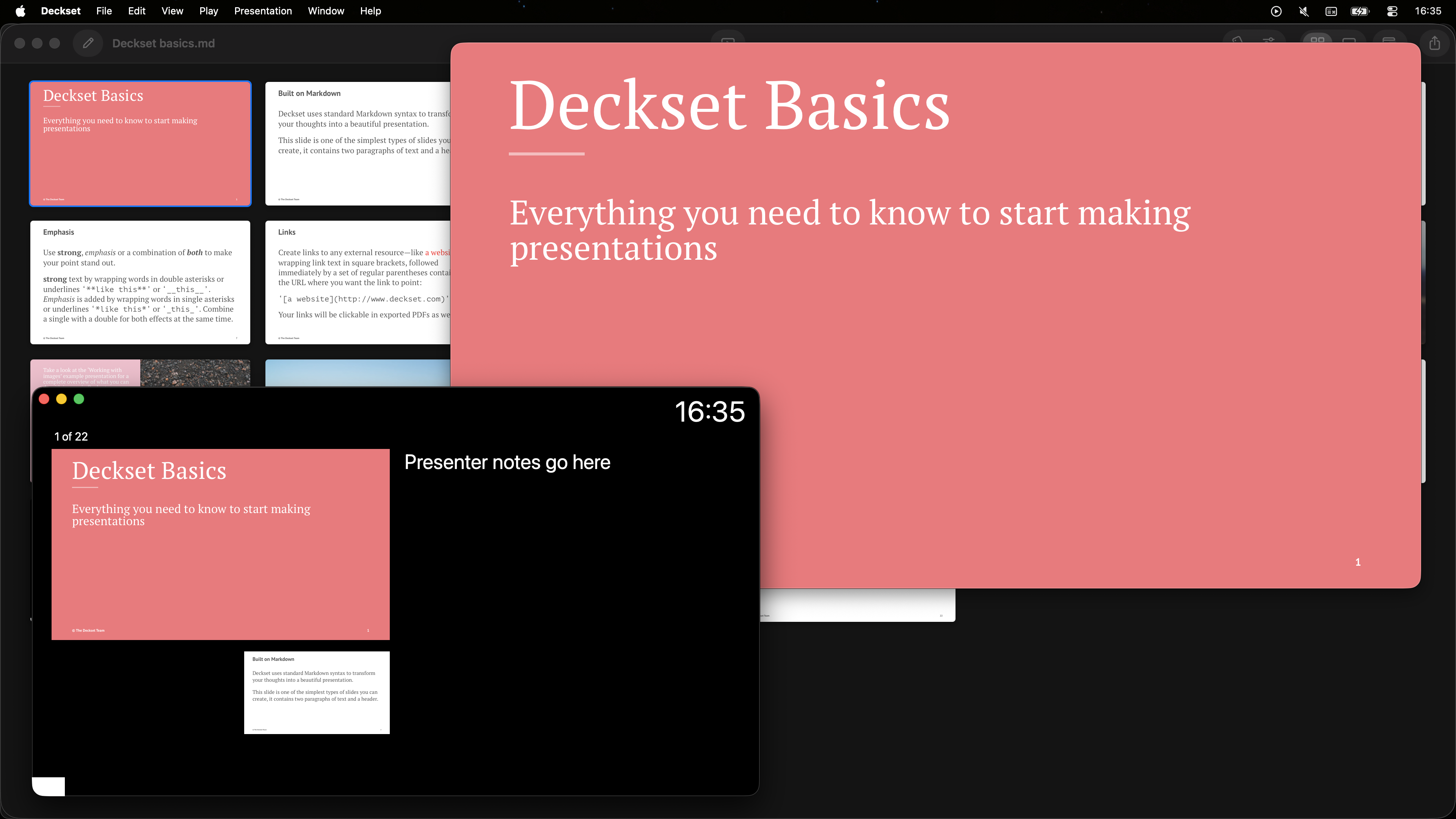
Instead of taking over your entire screen, Deckset can run in a resizable window. This lets you keep an eye on chat, notes, or other apps while teaching — especially useful for hybrid or online classes.
Accessibility features for inclusive teaching
iOS onlyDeckset can generate PDFs with accessibility tagging and supports descriptive text for images. This helps make your exported handouts more usable for students relying on screen readers and other assistive technologies.
This feature is currently in beta on iOS. macOS support is in development—contact support@deckset.com to learn more.
Save and share course materials
Keep your lesson source files alongside the tools you already use for sharing, version control, and course materials.
Exporting slides, handouts, and notes
Turn your presentations into PDFs for your learning platform, email, or course website. Toggle presenter notes on or off depending on whether you’re preparing rehearsal materials or student-friendly handouts. Here are common formats educators use today:
- PDFs with presenter notes for rehearsals or annotated handouts you intend to share.
- Slide-only PDFs to share with students via email or your LMS.
- Multiple slides per page to fit several slides on one sheet when you need compact handouts or a quick course recap.
Collaborate and version
Keep presentations in Git alongside assignments, or sync them with iCloud or Dropbox. Co-teachers, teaching assistants, and students can contribute without editing PowerPoint files. Use branches for experiments, review readable diffs, and roll back to an earlier semester when needed.
- Update lectures each semester while keeping a history of previous versions.
- Experiment with alternate explanations or examples on separate branches.
- Accept suggestions or pull requests from colleagues and teaching assistants.
- Reuse and adapt successful lectures across different courses or institutions.
Flip your classroom
Write a lesson in Markdown once, then share slide-only PDFs through your LMS or email list—no Deckset account required for students. Keep presenter notes as facilitator guides, and reuse updated modules with later cohorts.